View and Complete Tasks from Korlap
Complete guide to viewing, accepting, and finishing tasks given by Korlap (Field Coordinator).
What is a Task?
Task is specific work assigned by Korlap to you. Each task has:
- Description — Detail of work to do
- Location — Area where task must be done
- Priority — Urgency level (Normal, Important, Urgent)
- Deadline — Time limit for completion
- Status — Pending, Accepted, In Progress, Done, etc
Open Task List
Method 1: From Menu
- Tap Menu tab (☰)
- Tap "Tasks"
- Task list appears
Method 2: From Notification
If there's new task:
- You'll get push notification (message on screen/notification bell)
- Tap notification to open Tasks page
- Task list appears
Task List
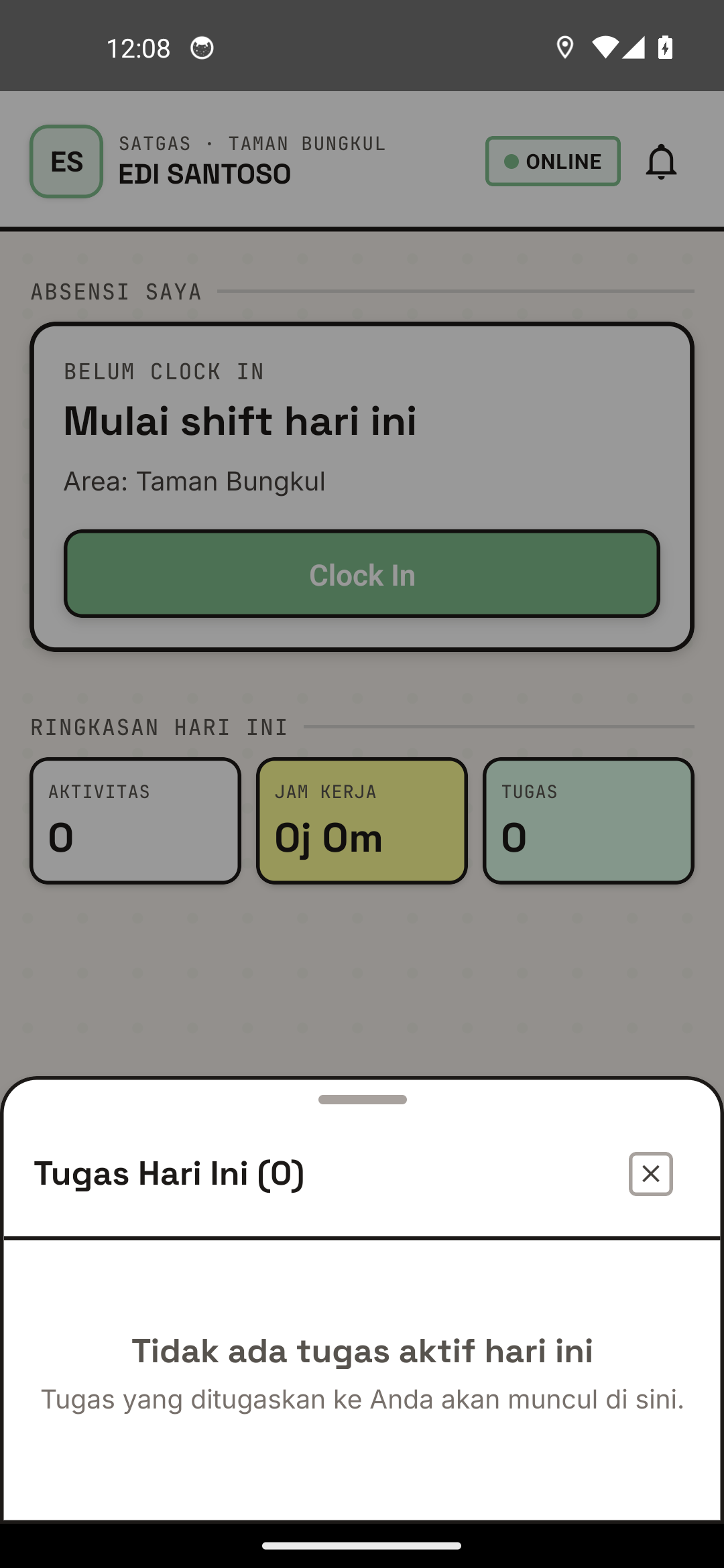
The task list view showing pending tasks.
Tasks page shows:
┌──────────────────────────────────┐
│        TASK LIST                │
├──────────────────────────────────┤
│ 🔴 [IMPORTANT]                  │
│ Clean Front Gate Area           │
│ Location: Taman Bungkul         │
│ Deadline: Today, 14:00          │
│ Status: [Not Accepted]          │
│                                 │
│ 🟡 [NORMAL]                     │
│ Change Plants in Pots           │
│ Location: Taman Bungkul         │
│ Deadline: Tomorrow, 17:00       │
│ Status: [Accepted - Not Started]│
│                                 │
│ 🟢 [NORMAL]                     │
│ Report Chair Damage             │
│ Location: Parking Area          │
│ Deadline: 3 Days, 10:00         │
│ Status: [In Progress]           │
└──────────────────────────────────┘
Filter & Sort
You can filter tasks by:
- Status — Not Accepted, Accepted, In Progress, Done, Rejected
- Priority — Urgent, Important, Normal
- Date — Today, This week, All
- Location — Specific area
View Task Details
Open Task Details
- From task list, tap one task
- Task detail page opens
Task Detail Page
The task detail view with description and action buttons.
┌──────────────────────────────────┐
│ ← TASK DETAILS                  │
├──────────────────────────────────┤
│                                 │
│ PRIORITY: 🔴 IMPORTANT           │
│                                 │
│ TASK TITLE                      │
│ Clean Front Gate Area           │
│                                 │
│ DESCRIPTION                     │
│ Clean front gate area from      │
│ trash and dust. Use broom and   │
│ shovel. Put trash in designated │
│ location                        │
│                                 │
│ LOCATION: Taman Bungkul         │
│ DEADLINE: Today, 14:00          │
│ ASSIGNED BY: Ahmad (Korlap)     │
│                                 │
│ STATUS: [Not Accepted]          │
│                                 │
│ [ACCEPT TASK] [REJECT]         │
│                                 │
└──────────────────────────────────┘
Information in Details:
- Title & Description — Work details
- Priority — Red (urgent), yellow (important), green (normal)
- Location & Deadline — Where and when to finish
- Assigned By — Who gave task (Korlap)
- Status — Current task status
- Action Buttons — Accept/reject/start/complete
Accept Task
Steps to Accept Task
- Open task details to accept
- Tap "ACCEPT TASK" or "ACCEPT" button
- System asks confirmation:
Are you sure you accept this task?
- Tap "Yes, I Accept"
- Status changes to "Accepted"
- You'll see notification:
✓ Task AcceptedYou can now start working on this task
What Does Accepting Mean?
When you accept task:
- ✓ You commit to completing it
- ✓ Korlap knows you'll work on it
- ✓ Deadline starts counting
- ✓ You can start work
Don't accept task if unsure you can finish! Better to reject and explain to Korlap.
Reject Task
When to Reject Task?
Reject task if:
- ✗ No time available
- ✗ Don't have skill/equipment
- ✗ Other urgent work
- ✗ Not feeling well
How to Reject Task
- Open task details to reject
- Tap "REJECT" button
- System asks for reason:
Reason for rejecting task?[Enter reason...]
- Type your reason clearly
- Tap "Send"
- Task status becomes "Rejected"
- Korlap sees rejection reason
Rejecting task is fine if you have clear reason. Communication important so Korlap can assign elsewhere.
Do Task Work
After Accepting Task
After task status is "Accepted", you can:
- Start working — Do work per description
- Update status — Change to "In Progress" when starting
- Document — Take photos/video while working
Update Task Status
When working, update status:
Status 1: Start Work
- Tap "START WORK" or "START" button
- Status becomes "In Progress"
Status 2: Work Complete
- After finish, tap "MARK COMPLETE" or "COMPLETE"
- Or make activity report (auto-links to task)
Create Report for Task
How to Make Report Linked to Task:
- Tap Menu → Activities
- Tap "+ Report Activity"
- In form, there's "Related Task" field
- Select the task you're working on
- Fill description and take photo
- Tap "SUBMIT"
Report auto-links to task, and task marks "Done" after Korlap validates report.
Task Status - Full Lifecycle
Task Status Journey
[Not Accepted] → [Accepted] → [In Progress] → [Done]
        ↓
    [Rejected]
| Status | Meaning | Action |
|---|---|---|
| 📋 Not Accepted | New task from Korlap, waiting your answer | Accept or Reject |
| ✅ Accepted | You accepted, not started | Start Work or Reject |
| 🔨 In Progress | You're working | Mark Complete when done |
| ✓ Done | Work finished, waiting Korlap approval | Wait for approval |
| ❌ Rejected | You or Korlap rejected | Make new task or contact Korlap |
Deadline & Notifications
Task Deadline
Each task has deadline (time limit):
Task: Clean Front Gate Area
Deadline: Today, 14:00
Time Left: 2 hours 30 minutes
Deadline Notifications
You get notifications if:
-
Deadline Approaching — 1 hour before deadline
⏰ Task "Clean Front Gate" deadline in 1 hour -
Deadline Missed — If past deadline
⚠️ Task "Clean Front Gate" past deadline
If task past deadline, Korlap will know. Finish on schedule for best evaluation.
Extend Deadline
If need more time:
- Contact Korlap directly (chat, call, or in-person)
- Explain why you need more time
- Korlap can extend deadline
Don't just delay without talking!
Filter & Sort Tasks
Filter Tasks
On task list page, you can filter:
Filter 1: Status
- Not Accepted
- Accepted
- In Progress
- Done
- Rejected
Filter 2: Priority
- Urgent (Red)
- Important (Yellow)
- Normal (Green)
Filter 3: Date
- Today
- This Week
- This Month
- All Time
Sort Tasks
Sort by:
- Nearest Deadline — Closest deadline first
- Newly Created — Newest first
- Highest Priority — Urgent first
Best Practice: Sort by "Nearest Deadline" so you don't miss deadlines.
Task Troubleshooting
"Cannot Accept Task (Button Disabled)"
Causes:
- Status already changed (already accepted by someone)
- Task no longer active
Solution:
- Refresh page (pull to refresh)
- Contact Korlap if already accepted by someone
"Task Not Showing in List"
Possible:
- Task filtered out (check active filters)
- Task for someone else, not you
Solution:
- Reset filters: tap "Reset Filters"
- Check area assignment with Korlap
"Deadline Passed, Can I Still Submit?"
Answer:
- Can still submit, but recorded as "Late"
- Supervisor will see you finished outside deadline
- Explain or add report for context
"Korlap Wants Revision, Do I Make New Report?"
Yes, follow steps:
- See feedback/notes from Korlap in task details
- Make new activity report with improvements per feedback
- Link to same task in "Related Task" field
- Submit revised report
Task Work Tips
1. Accept or Reject Promptly
- Don't delay, accept or reject right away
- Korlap needs to know who's working on it
2. Communicate
- If problem, contact Korlap directly
- Don't just submit if issue exists
3. Document Well
- Make clear activity report with photos
- Link to task for easy tracking
4. On Time
- Try to finish before deadline
- If can't, tell Korlap early
5. Quality
- Do work per task description
- Take good photos for report
Need task help? See FAQ & Help or contact your Korlap.