Real-Time GPS Location Tracking

Complete information about SEKAR's GPS tracking system and how it works.
What is GPS Tracking?
GPS Tracking is a feature that allows supervisors to monitor your position in real-time on a map while you're working. The system records:
- Your Position — Latitude and longitude of your location
- Update Time — When your position was last updated
- Accuracy — How accurately GPS reads your position
- Work Area — Which area you're currently working in
Why Must GPS Be Active?
GPS must stay active during work because:
- Location Verification — Proves you work in your assigned area
- Safety — Helps find you in case of emergency
- Performance Evaluation — Records work area coverage
- Accountability — Shows you're present at work location
Enabling GPS
First Time Setup
When you first open SEKAR app, a pop-up will ask for GPS permission:
- Tap "Allow" or "Allow"
- Select "Always Allow" or "Allow While Using the App"
- GPS will start recording your position
If Already Active
Check if GPS is active on Home screen:
- 🟢 Green Status = GPS is recording
- 🔴 Red Status = GPS not active
Manual GPS Activation
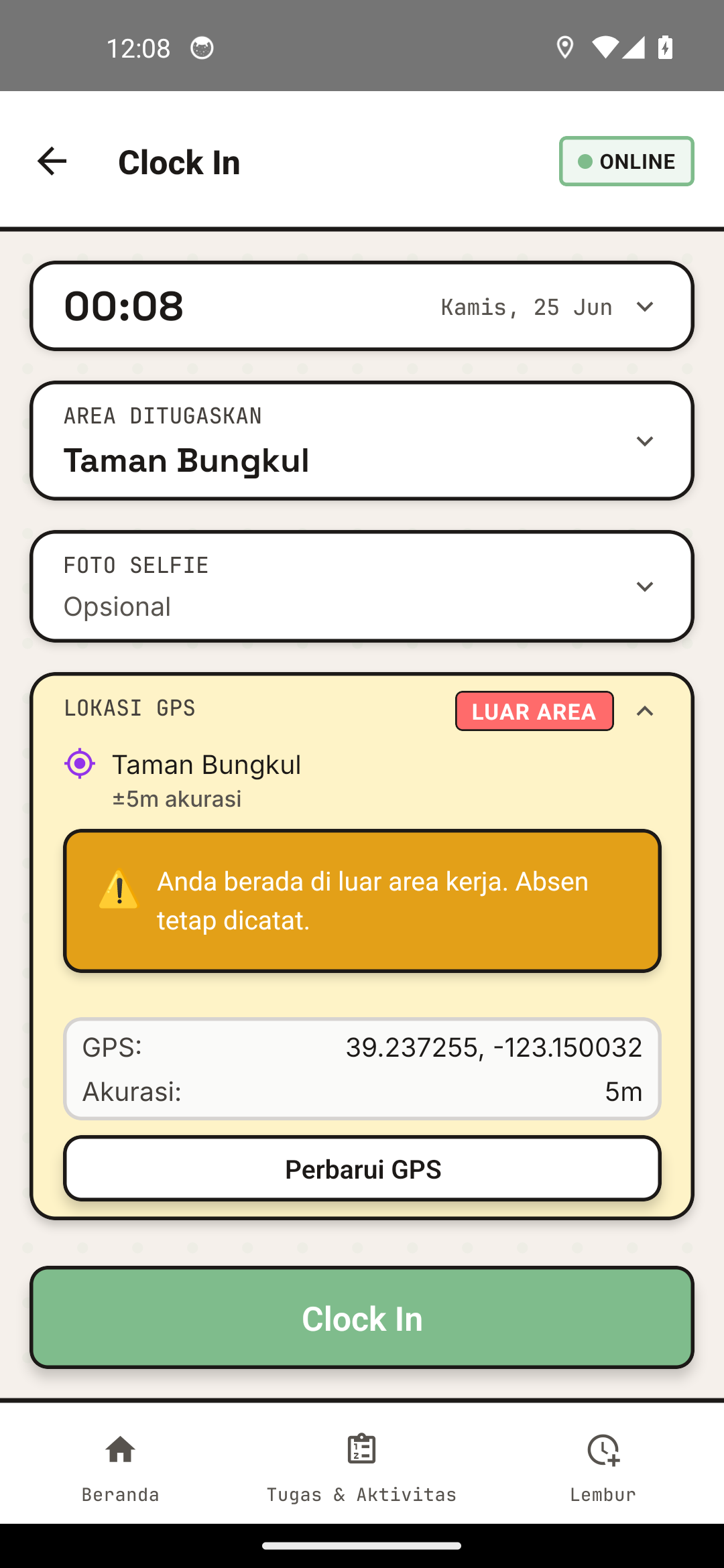
The GPS location tracking view.
- Open device Settings
- Find "Location" or "Location Services"
- Enable "Location" or "Location Services"
- Select "High Accuracy" or "High Accuracy" mode
- This combines GPS + WiFi + mobile data for best accuracy
- Uses more battery, but GPS is more accurate
GPS Modes
1. High Accuracy
Uses: GPS + WiFi + Mobile Data
Accuracy: ±5-10 meters
Battery: Drains quickly
Recommendation: Use this while working
Advantages:
- Very accurate location
- GPS locks faster
Disadvantages:
- Battery drains quickly
- Not ideal for full day if battery limited
2. Battery Saver
Uses: WiFi + Mobile Data only (no GPS)
Accuracy: ±50-100 meters
Battery: Saves battery
Recommendation: Don't use for SEKAR work
Advantages:
- Battery lasts longer
Disadvantages:
- Poor accuracy
- May not be accurate for 100m radius
- Supervisor cannot track accurately
Best Choice: High Accuracy mode is standard for SEKAR to ensure accurate GPS data.
3. Device Only (GPS Only)
Uses: GPS only
Accuracy: ±10-15 meters (but takes longer)
Battery: Moderate
Recommendation: Alternative if WiFi unavailable
How Tracking Works
GPS Timeline in a Day
06:00 | You Clock In
      | → GPS starts recording position every 30-60 seconds
      | → Real-time reports sent to supervisor
      |
10:00 | You're working in assigned area
      | → Supervisor can see your position on live map
      |
14:00 | You Clock Out
      | → GPS stops recording
      | → System summarizes location history in report
GPS Accuracy
GPS works with varying accuracy depending on:
| Factor | Impact |
|---|---|
| Weather | Clear: ±5m, Cloudy: ±10m, Rain: ±15-20m |
| Work Area | Open area: accurate, Under dense trees: less accurate |
| Signal | Strong signal: accurate, Weak signal: inaccurate |
| Time | First use: needs 30-60 seconds |
If accuracy is poor:
- Wait 1-2 minutes for GPS to lock
- Move to more open area (no tall trees)
- Make sure location mode is "High Accuracy"
Supervisor Monitoring
What Can Supervisors See?
Supervisors (Korlap, Rayon Head, Management) can see:
- Live Map — Your team's position on real-time map
- Location Markers — Symbol for each worker's location
- Location History — Your travel path throughout the day
- Activity Points — Where you took report photos
- Coverage Report — Which areas you worked in
How Supervisors Monitor
Supervisors open:
- SEKAR App → Menu tab → Monitoring
- Or Web Dashboard → Monitoring
- Map displays team positions in real-time
GPS Privacy & Security
Is GPS Tracking Private?
Yes, this is part of your work. GPS is used for:
- ✓ Verify you're present at work location
- ✓ Your safety in the field
- ✓ Work area documentation
- ✓ Performance evaluation
GPS data is not used for 24/7 tracking.
When Does GPS Stop Recording?
GPS automatically stops recording when:
- You clock out
- You logout from app
- Your shift ends
After that, supervisor cannot see your position.
Save Battery While GPS Active
Tips to Save Battery with GPS On
1. Reduce Screen Brightness
- Set brightness to auto or lower
- Saves 30-40% battery
2. Close Other Apps
- Close WiFi, Bluetooth, background apps
- Saves 10-20% battery
3. Carry Power Bank
- Bring 20,000 mAh power bank
- Can charge 2-3 times during day
4. Use Airplane Mode
- If working in remote area with no signal
- Reduces power consumption
- (GPS still works)
5. Adjust GPS Update Interval
- In app settings, change GPS update interval
- From 30 seconds → 60 seconds (saves battery, less real-time)
- Coordinate with supervisor
Battery Life Estimates
Condition               | Battery Duration
GPS ON, Bright Screen   | 4-5 hours
GPS ON, Medium Screen   | 6-8 hours
GPS ON, Dim Screen      | 8-10 hours
GPS ON + Power Bank     | Full day + extra
Note: Duration varies by device type and other running apps.
Offline & GPS
Can GPS Work Offline?
Yes, GPS can work offline.
Connection Status | GPS Active? | Data Recorded? | Sync When?
Internet ON       | ✓ Yes      | ✓ Real-time   | Automatic
Internet OFF      | ✓ Yes      | ✓ Locally     | When online again
How It Works:
- When online: GPS data sent directly to server
- When offline: GPS data saved locally on device
- When online again: Offline data auto-uploads (background sync)
Supervisor cannot see your position in real-time while offline, but all data will be recorded when synchronized.
GPS Troubleshooting
"GPS Cannot Find Signal"
Causes:
- New device, GPS needs warm-up
- Area blocked by building or dense trees
- Very bad weather
Solution:
- Wait 2-3 minutes in open area
- Move to more open location (no tall trees)
- Restart app
- Restart device if still fails
"GPS Accuracy Poor / Jumping Around"
Causes:
- Area blocked or weak signal
- Interference from tall buildings
Solution:
- Wait a few minutes for GPS to stabilize
- Change to "High Accuracy" mode in Settings
- If area always has issues, report to supervisor
"Battery Drains Quickly with GPS"
Solution:
- Carry power bank
- Reduce screen brightness
- Close other background apps
- Change GPS interval to 60 seconds (saves battery)
- Use Dark Mode in app (if available)
"GPS Keeps Asking for Permission"
Solution:
- Open Settings > Apps > SEKAR > Permissions
- Enable "Location"
- Select "Always Allow" or "Allow While Using App"
- Restart app
GPS FAQ
Q: Can supervisor see me 24/7? A: No. GPS only active when you clock in. After clock out or logout, GPS stops recording.
Q: What if I work under dense trees? A: GPS will still work, but accuracy may decrease. Supervisor will see available data.
Q: Can I disable GPS while working? A: Not recommended. GPS is part of attendance verification.
Q: How long is GPS data stored? A: GPS data stored on server minimum 90 days for reports and audit.
Need GPS help? See FAQ & Help or contact your IT.