Real-Time Team Monitoring
Complete guide for Korlap (field coordinators) to monitor team positions and attendance on a live map.
What is Monitoring?
Monitoring is a feature to view your team's position in real-time on a map. As Korlap, you can:
- View Real-Time Positions — See the location of each satgas/linmas on the map
- Monitor Attendance — Check who has clocked in/out
- View Location History — Track satgas travel routes throughout the day
- Analyze Work Coverage — See which areas have been covered
Opening Monitoring
Method 1: From Menu
- Open the Menu tab (☰)
- Tap "Monitoring"
- The live map will open
Method 2: From Home
- Open the Home tab
- Scroll to the "Team Monitoring" section
- Tap to open the live map
Monitoring View
Live Map
┌─────────────────────────────────┐
│ [🔍] Search Area  [⚙️] Filter   │ ← Header
├─────────────────────────────────┤
│                                 │
│  ╔═══════════════════════════╗  │
│  ║                           ║  │
│  ║   [Map with Markers]      ║  │
│  ║                           ║  │
│  ║  🟢 Ahmad (Satgas)        ║  │
│  ║     Taman Bungkul         ║  │
│  ║     07:15 ONLINE          ║  │
│  ║                           ║  │
│  ║  🔵 Budi (Satgas)         ║  │
│  ║     Parking Area          ║  │
│  ║     OFFLINE               ║  │
│  ║                           ║  │
│  ║  🔴 (Offline: 5 people)  ║  │
│  ║                           ║  │
│  ╚═══════════════════════════╝  │
│                                 │
│ [Show List]   [Apply] │
└─────────────────────────────────┘
Map Elements
Markers:
- 🟢 Green — Worker online, logged in and working
- 🔵 Blue — Worker on break/inactive
- 🔴 Red — Worker offline or not logged in
Information per Marker:
- Worker name
- Role (Satgas, Linmas)
- Current location or area
- Connection status (ONLINE/OFFLINE)
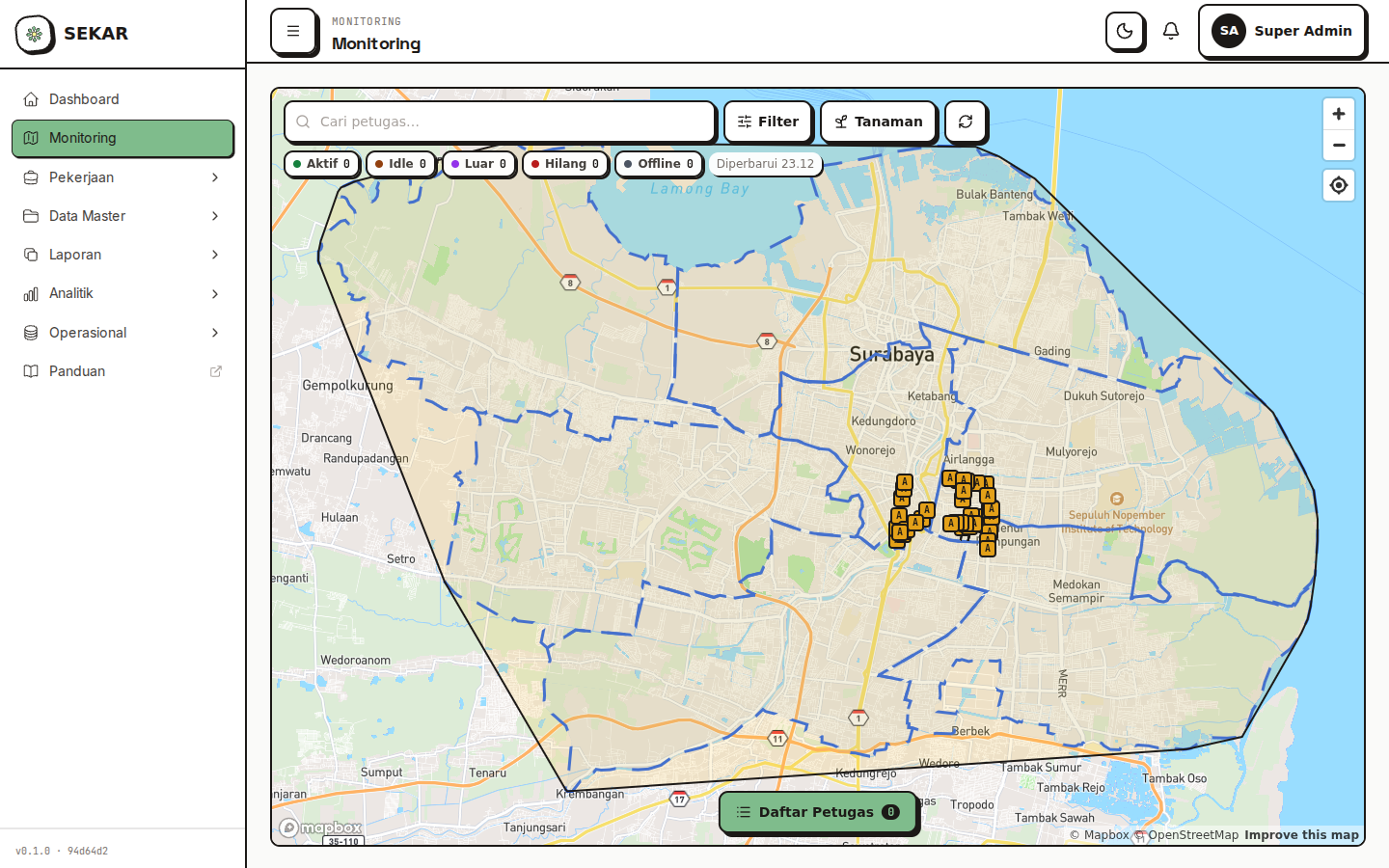
The web dashboard live monitoring map with team positions.
Filters & Search
Monitoring Filters
On the map header, there are several filters:
1. Status Filter:
- Online — Show only online workers
- Offline — Show only offline workers
- All — Show everyone
2. Area Filter:
- Taman Bungkul
- Parking Area
- Other areas in your rayon
3. Role Filter:
- Satgas — Show satgas only
- Linmas — Show linmas only
- All — All roles
Searching for Workers
- Tap the [🔍] Search button above the map
- Type worker's name
- The searched worker will be highlighted on the map
- The map will zoom to the worker's location
Viewing Worker Details
Tap Marker for Details
- Tap a marker (worker dot) on the map
- The worker's detail card will appear
Detail Information
┌─────────────────────────────────┐
│ AHMAD RIZKI                     │
│ Satgas                          │
├─────────────────────────────────┤
│ STATUS: 🟢 ONLINE              │
│                                 │
│ CURRENT LOCATION                │
│ Taman Bungkul                   │
│ Latitude: -7.295479             │
│ Longitude: 112.762227           │
│ Accuracy: ±8m                   │
│                                 │
│ TODAY'S SHIFT                   │
│ Shift 1 (06:00 - 14:00)        │
│                                 │
│ ATTENDANCE                      │
│ In: 06:15 ✓ (on time)          │
│ Out: — (not yet out)           │
│                                 │
│ [VIEW HISTORY]  [CONTACT]      │
└─────────────────────────────────┘
Information Displayed:
- Name, role, connection status
- Current GPS location with accuracy
- Today's shift
- Attendance status (in/out)
- Last location update time
Worker Location History
Viewing Travel Routes
- From the worker's detail card, tap "[VIEW HISTORY]" or "Location History"
- The map will show the travel route
History View
Travel Route: Ahmad Rizki (24 June 2026)

[Map with route lines]

▲ 06:15 — Clocked in at Taman Bungkul
▬ 06:30 — Moving to Playground Area
● 06:45 — Stopped at Playground Area (10 minutes)
● 07:00 — Took report photo
▬ 07:15 — Moving to Tree Area
● 07:30 — Stopped at Tree Area (45 minutes)
● 08:15 — Took report photo
▬ 08:30 — Returning to Gate
History Information:
- Route line shows travel path
- Key points (stops, reports, attendance)
- Time and duration at each location
- Link to report if photos available
Location history is useful for:
- Verifying work coverage
- Checking if worker completed assigned area
- Understanding work patterns
Attendance & Today's Shift
Team Attendance Summary
On the Monitoring page, there's an attendance summary section:
ATTENDANCE TODAY (24 June 2026)

Shift 1 (06:00 - 14:00)
✓ Clocked In: 8 / 10 people
⏰ Late: 2 people
⏱️ Not Clocked In: 0 people

Shift 2 (14:00 - 22:00)
✓ Clocked In: 7 / 10 people
⏰ Late: 1 person
⏱️ Not Clocked In: 2 people

Shift 3 (22:00 - 06:00)
✓ Clocked In: 5 / 6 people
⏰ Late: 0 people
⏱️ Not Clocked In: 1 person
This helps you quickly see attendance overview before checking individual details.
Work Areas & Boundaries
Viewing Area Boundaries
The Monitoring map displays:
- Boundary Lines — Work area limits (drawn as polygon lines)
- Area Names — Area names displayed
- Area Colors — Different colors for different areas
Verifying Work Coverage
By looking at location history & boundaries:
- Check if satgas travel route covers the assigned area
- Identify uncovered areas
- View report photos to verify work
Pro Tip: Compare location history with activity reports. Covered areas should have report photos.
Communication from Monitoring
Contact Satgas Directly
From the worker's detail card, you can:
- Tap the "[CONTACT]" button
- Choose a communication method:
- Chat — Send text message
- Call — Call directly
- Send Notification — Push notification to worker
Send Urgent Notification
For quick communication:
- Tap worker on map
- Tap "Send Notification" or "Send Alert"
- Type your message (example: "Ahmad, finish playground area first")
- Worker will receive push notification
Export Monitoring Data
Download Monitoring Report
Some rayons have export features:
- On the Monitoring page, look for "Export" or "Report" button
- Choose format:
- PDF — For printing/official reports
- Excel — For further analysis
- Select date range to export
- Tap "Download"
- File will be saved to your device
Offline Monitoring
Monitoring While Offline
If the app/dashboard is offline:
- The map will display last saved data stored locally
- Positions will be a last snapshot, not real-time
- Status will update automatically when connection returns
Ensure stable connection when doing critical monitoring.
Troubleshooting Monitoring
"Worker Markers Not Showing on Map"
Causes:
- Worker hasn't clocked in yet
- Worker offline and GPS not recording
- Connection problem
Solutions:
- Check if worker has clocked in
- Contact worker to check GPS status
- Refresh map or restart app
- Ensure stable internet connection
"Position Not Updating (Stuck at Old Location)"
Causes:
- Worker's internet connection is down
- GPS inaccurate in covered areas
- App frozen on worker's device
Solutions:
- Contact worker to check connection
- Ask worker to restart app
- Wait a few minutes, usually updates automatically
"Can't View Location History"
Causes:
- History data not saved yet
- Internet disconnected while loading
Solutions:
- Ensure internet connection is active
- Wait a moment
- Refresh page
- Contact admin if issue persists
Tips for Effective Monitoring
1. Monitor Regularly
- Check map 2-3 times per shift
- Identify uncovered areas
2. Verify with Reports
- Compare location history with activity reports
- Ensure all areas have documentation
3. Proactive Communication
- If worker offline for long, contact directly
- If area uncovered, reassign task
4. Analyze Work Patterns
- View location history to understand worker efficiency
- Identify problem areas (frequently worked but damaged again)
5. Export & Report
- Export monitoring data periodically for rayon head reports
- Use for performance analysis and evaluation
Need monitoring help? See FAQ & Help or contact your admin.