Creating and Assigning Tasks to Your Team
Complete guide for Korlap to create and assign tasks to satgas/linmas.
What is Task Creation?
As Korlap, you can create specific tasks for satgas/linmas with:
- Detailed Description — What work needs to be done
- Priority — How urgent
- Deadline — When it must be completed
- Location — Which area
- Assignee — Who will do it
Creating a New Task
Method 1: From Menu
- Open the Menu tab (☰)
- Tap "Manage Tasks" or "Create Task"
Method 2: From Task Page
- Open Menu → Tasks
- Look for "+ CREATE TASK" or "New Task" button
- Tap to open form
Task Creation Form
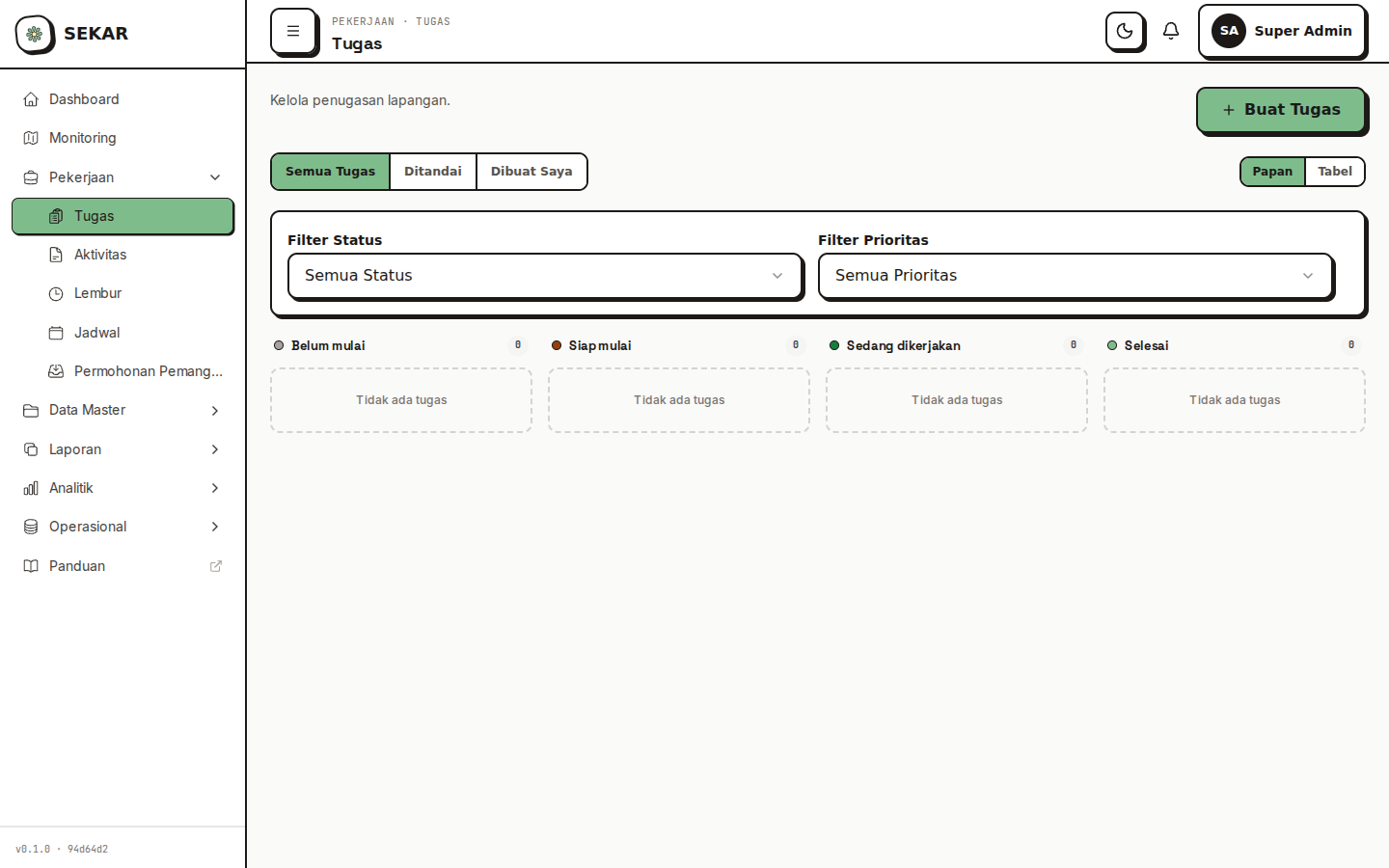
The web dashboard task management interface.
Step 1: Fill in Basic Information
┌──────────────────────────────────┐
│     NEW TASK FORM               │
├──────────────────────────────────┤
│ TASK TITLE *                    │
│ [Clean Front Gate Area...]      │
│                                 │
│ DETAILED DESCRIPTION *          │
│ [Describe the work that needs   │
│  to be done, steps, tools       │
│  required, etc.]                │
│                                 │
│ PRIORITY *                      │
│ ○ Normal   ○ Important   ○ Urgent│
│                                 │
│ DEADLINE *                      │
│ [Select Date & Time: 24/06/26   │
│  14:00 ▼]                       │
│                                 │
│ [CONTINUE TO ASSIGNEE]          │
└──────────────────────────────────┘
A. Task Title
Type a short, clear, specific title:
Good Title Examples:
- "Clean Front Gate Area of Trash & Dust"
- "Replace Dead Plants in Playground Area"
- "Repair Broken Chairs in Recreation Area"
Don't:
- Make it too short: "Work" or "Clean"
- Too vague: "Daily Activity"
- Unclear: "Whatever"
B. Detailed Description
Write what needs to be done in detail:
Good Description Example:
Clean the front gate area of plastic trash,
dry leaves, and dust. Use a soft broom for
the garden and a dustpan for trash. Collect
trash in the provided black basket. After
completion, the area should be clean and
neat for good visitor impressions.
Include:
- What needs to be done
- Method/approach to use
- Tools/equipment needed
- Criteria for completion (how area should look after)
C. Choose Priority
There are 3 priority levels:
| Priority | Icon | Meaning | When to Use |
|---|---|---|---|
| Urgent | 🔴 | Very important, must complete today | Damage, emergency, guest complaint |
| Important | 🟡 | Important, should complete today/tomorrow | Routine maintenance, special activities |
| Normal | 🟢 | Routine, can do per schedule | Regular daily work |
D. Set Deadline
Choose when the task must be completed:
- Tap the "Deadline" field
- Select date (calendar)
- Select time (completion time)
- Example: "24 June 2026, 14:00" = must finish by 2 PM
Realistic Deadlines: Don't set impossible deadlines. Consider task complexity and worker workload.
Step 2: Choose Work Area
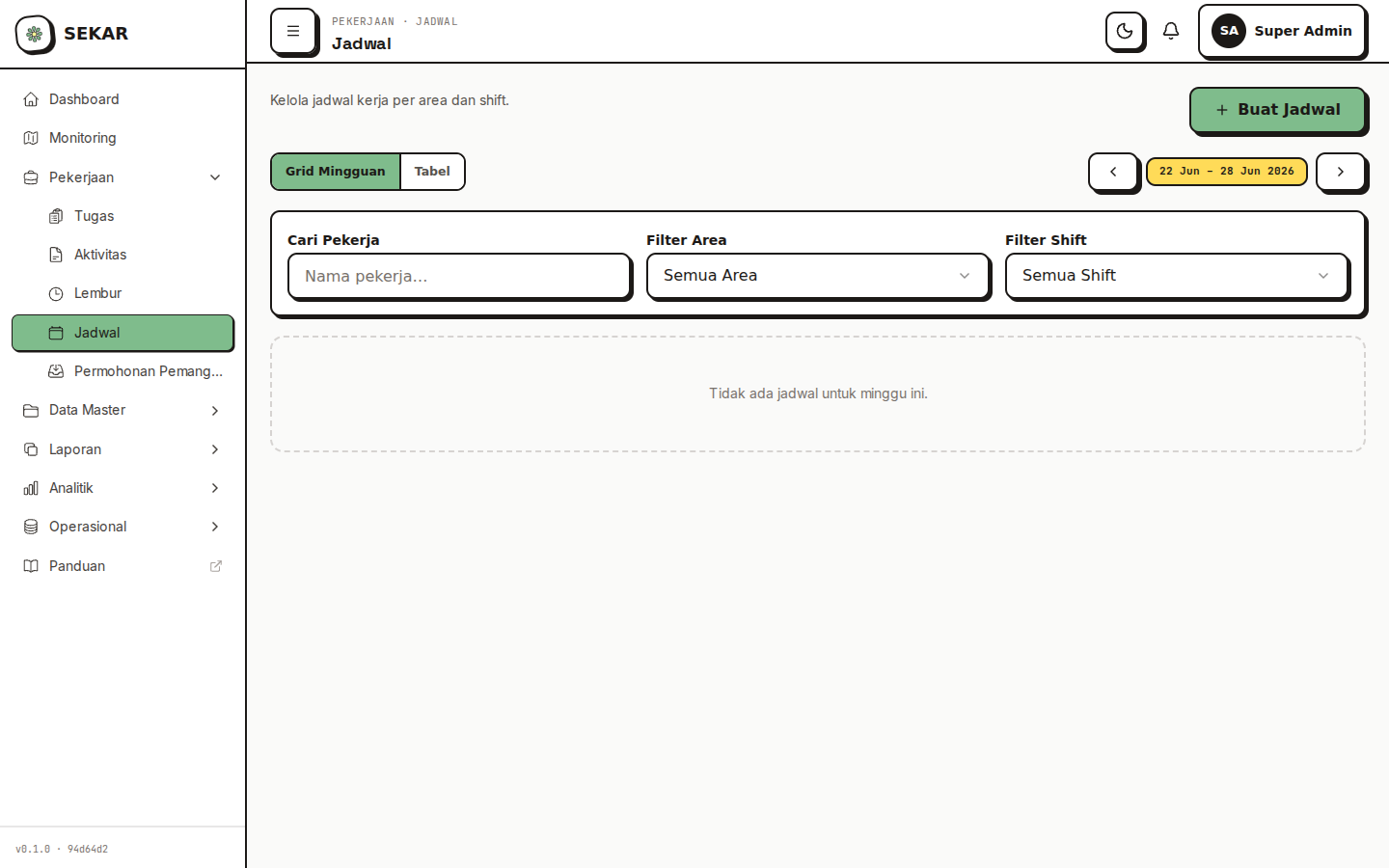
The schedule and area assignment view.
┌──────────────────────────────────┐
│  CHOOSE WORK AREA               │
├──────────────────────────────────┤
│ AREA *                          │
│ [Select Area ▼]                 │
│ ○ Taman Bungkul                │
│ ○ Parking Area                 │
│ ○ Playground Area              │
│ ○ Other                        │
│                                 │
│ [CONTINUE TO ASSIGNEE]          │
└──────────────────────────────────┘
Select the area where the work will be done.
Step 3: Determine Assignee (Who Does It)
┌──────────────────────────────────┐
│  DETERMINE ASSIGNEE (WORKER)    │
├──────────────────────────────────┤
│ ASSIGN TO (Select Worker) *    │
│ ☐ Ahmad Rizki (Satgas)         │
│ ☐ Budi Santoso (Satgas)        │
│ ☑ Citra Dewi (Satgas)          │
│ ☐ Doni Hartono (Linmas)        │
│                                 │
│ SELECTED COUNT: 1               │
│                                 │
│ [CREATE TASK]  [CANCEL]         │
└──────────────────────────────────┘
How to Select Workers
- View List — All satgas/linmas in your rayon are shown
- Check — Tap worker name to check
- Multi-Select — You can assign to 1 or more workers
Tips for Worker Selection
- Consider Skill — Pick worker suitable for task type
- Check Workload — Don't overload one person with many tasks
- Area Assignment — Better to assign to worker already working in that area
- Team Coordination — For big work, can assign to 2-3 people
Step 4: Create Task
-
Verify all information is correct
-
Tap "[CREATE TASK]"
-
System will process
-
You'll see confirmation:
✓ Task Created Successfully!Task sent to:- Ahmad Rizki- Budi Santoso -
Workers will receive push notification about new task
Editing Tasks
Edit Task Before Acceptance
If task hasn't been accepted by worker, you can still edit:
- Open your tasks list
- Tap task to edit
- Tap "Edit" button
- Change needed information
- Tap "Save"
Edit Task After Acceptance
After worker accepts task:
- Can't edit description (to avoid confusing worker)
- Can extend deadline — tap "Extend Deadline" and choose new date
- Can add notes — tap "Add Note" for further communication
Tracking Task Status
Your Tasks List
- Open Menu → Tasks
- View list of tasks you created
Task Status
MY TASKS

🟡 [IMPORTANT] Clean Front Gate Area
   Assigned: Ahmad Rizki
   Status: ⏳ Not Accepted
   Deadline: Today, 14:00

🔴 [URGENT] Repair Broken Light
   Assigned: Budi Santoso
   Status: 🔨 In Progress
   Deadline: Today, 16:00

🟢 [NORMAL] Replace Dead Plants
   Assigned: Citra Dewi
   Status: ✓ Complete
   Deadline: Tomorrow, 10:00
   Completed: Today, 09:30
Filter & Sorting
- Filter Status — Pending, Accepted, In Progress, Complete, Rejected
- Filter Assignee — View tasks assigned to specific person
- Sort Deadline — Most urgent tasks on top
Validation & Follow-up
Monitor Task Progress
While task is being worked:
- Check Status Regularly — View tasks list, check if status moves from "Pending" to "In Progress"
- View Report — Worker will submit activity report related to task
- Review Report — Validate report to see if work matches
If Task is Rejected
If worker rejects task:
- Check rejection reason in app
- Communicate with worker — Ask why it was rejected
- Reassign — If needed, assign to different worker
- Evaluate — See if there's a problem with the work or assignment
If Task is Late (Past Deadline)
If deadline has passed:
- Contact Worker — Check work progress
- Extend Deadline — If more time needed, extend it
- Escalate — If no progress, report to rayon head
Bulk Assign & Batch Tasks
Assign Task to Multiple Workers (At Once)
For work needing multiple locations with multiple workers:
- Create First Task — With work details
- Assign to Worker 1 — Select area 1
- Create Task Again — Same details, different area
- Assign to Worker 2 — Select area 2
Or, if app supports:
- Assign one task to 3+ workers at once
- They will coordinate who covers which area
Clear communication is critical for bulk assignment so no tasks are missed.
Offline Mode
Create Task While Offline
If offline when creating task:
- Fill form as normal
- Tap "Create Task"
- Task will save as local draft
- When connection returns, system auto-sends to workers
Troubleshooting
"Assign Button Disabled (Can't Click)"
Causes:
- Haven't selected area
- No satgas available
Solutions:
- Make sure area is selected
- Check if there are active satgas in your rayon
"Worker Didn't Receive Task Notification"
Causes:
- Worker offline
- Notifications disabled in settings
Solutions:
- Ask worker to open app for sync
- Check notification settings on worker's device
- Contact worker via SMS/chat
"Task Not Appearing in Worker's List"
Causes:
- Error during creation
- Connection dropped while sending
Solutions:
- Refresh page
- Restart app
- Try creating task again if still fails
- Contact admin if persistent
Tips for Effective Task Creation
1. Clear Description
- Write detailed what needs to be done
- Include tools/equipment needed
- Explain completion criteria
2. Realistic Deadlines
- Consider complexity & workload
- Don't be too tight
- Communicate if rush
3. Right Assignment
- Choose worker with suitable skills
- Consider their workload
- Don't overload one person
4. Regular Follow-up
- Check task status at least daily
- Contact if issues arise
- Validate reports carefully
5. Documentation
- Ask worker to create report for each task
- View photos for work verification
- Keep for performance evaluation
Need help creating tasks? See FAQ & Help or contact your rayon head.