How to Login to SEKAR
Complete guide to login to the mobile app SEKAR and web dashboard.
Login on Mobile App
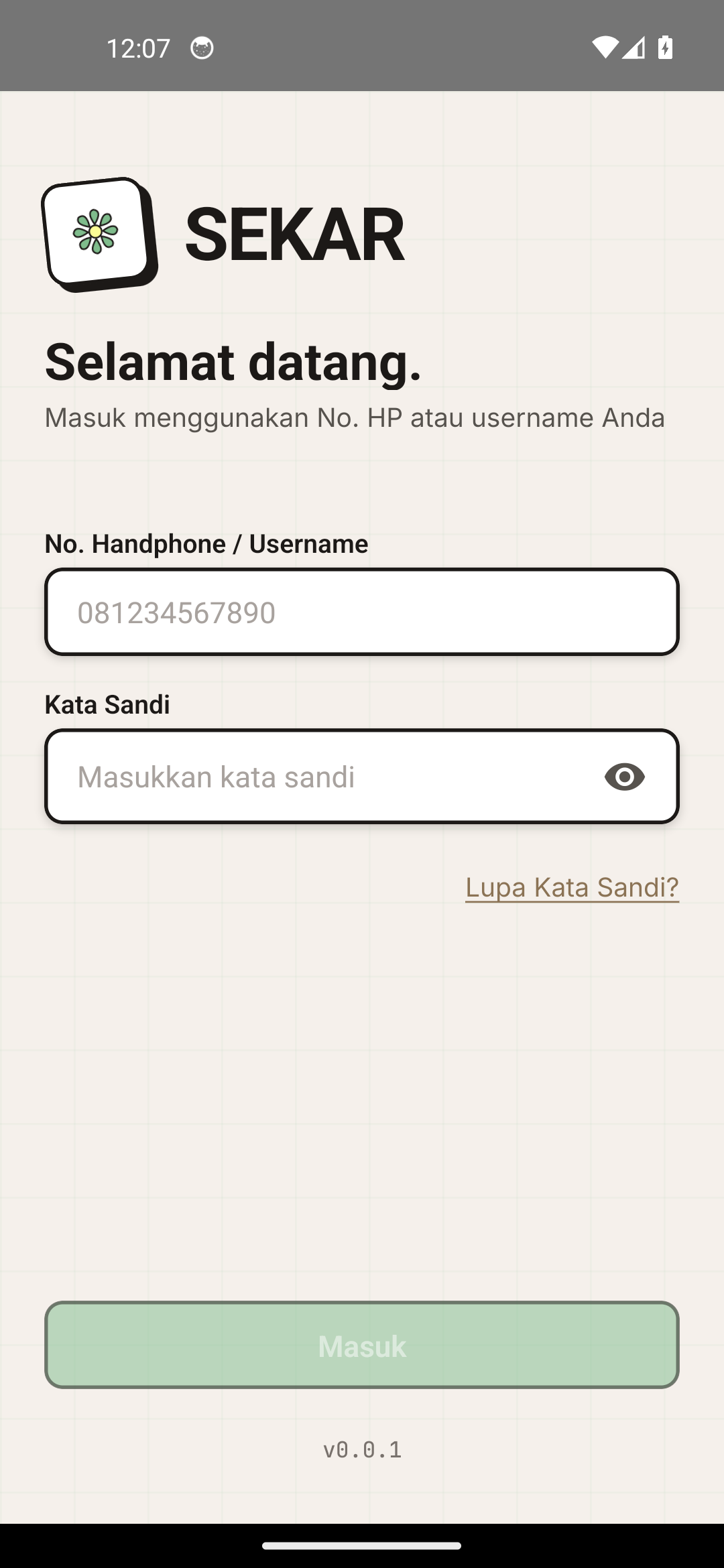
The SEKAR login screen on mobile.
Login Steps
-
Open SEKAR App
- Tap the SEKAR app icon on your device home screen
-
Enter Phone Number
- Enter your phone number (format: 081234567890)
- Make sure the number matches what's registered in the system
-
Enter Password
- Enter your password
- Tap the eye icon to show/hide password
-
Login
- Tap the LOGIN button
- Wait for the app to process (usually 2-3 seconds)
-
Success
- You'll be directed to the app home page
- Connection status shown at the top
Remember Me? Check the "Remember Me" box for automatic login next time.
Login on Web Dashboard
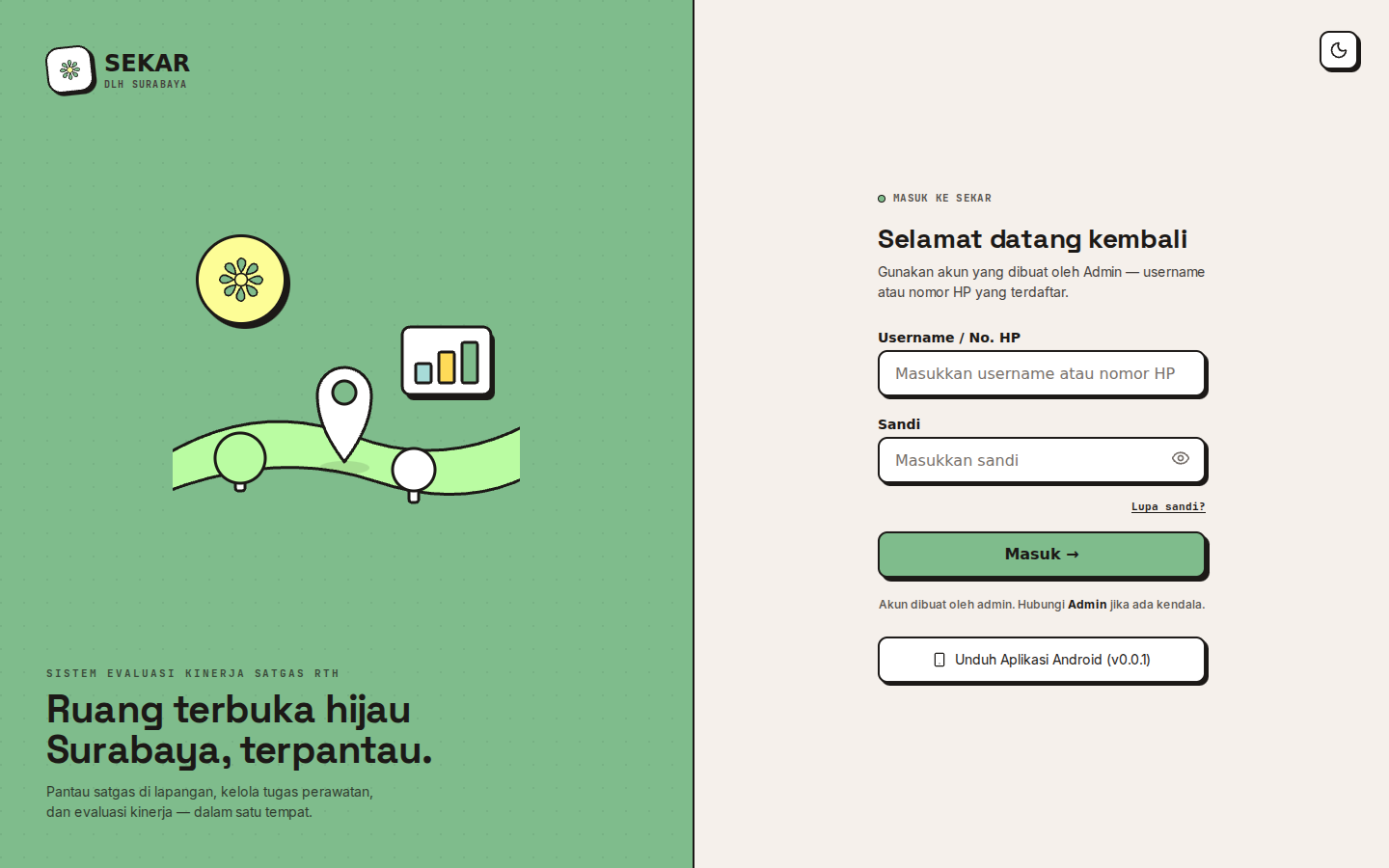
The web dashboard login page.
Web Login Steps
-
Open Browser
- Open a browser on your computer or tablet
-
Visit Dashboard
- Go to: sekar.wahyutrip.com
-
Choose Login Method
- Login with username or phone number
-
Enter Credentials
- Username/Phone Number: Enter your username or phone number
- Password: Enter your password
-
Click Login
- Click the LOGIN button
-
Success
- You'll see the dashboard for your role
HTTPS Required: The web dashboard can only be accessed via secure internet connection (HTTPS). Make sure your connection is stable.
Test Accounts for Experimenting
You can use the following test accounts (all with password password123):
| Role | Username | Phone Number |
|---|---|---|
| Satgas (Worker) | satgas1 | 081234567890 |
| Linmas | linmas1 | 081234567891 |
| Korlap | korlap1 | 081234567892 |
| Rayon Head | kepala_rayon1 | 081234567893 |
| Admin Data | admin_data | 081234567894 |
| Admin System | admin_system | 081234567895 |
| Superadmin | superadmin | 081234567896 |
Forgot Password?
How to Reset Password
If you forgot your password, follow these steps:
-
On Mobile App:
- Tap "Forgot Password?" on the login screen
- Enter your phone number
- Follow instructions sent via SMS or contact admin
-
On Web Dashboard:
- Click "Forgot Password?" on login page
- Enter your username or phone number
- Wait for instructions from admin or check email
Currently, password reset must be done through admin. Contact your rayon head or admin to reset.
Change Password
How to Change Your Password
From Mobile App:
- Open the Profile tab (bottom)
- Tap Settings (gear icon)
- Select Change Password
- Enter:
- Old password
- New password
- Confirm new password
- Tap Save
From Web Dashboard:
- Click your avatar in the top right
- Select Settings
- Open the Security tab
- Click Change Password
- Enter old and new password
- Click Save
Choose a strong password with a mix of letters, numbers, and symbols. Don't share your password with anyone.
Logout
How to Sign Out
From Mobile App:
- Open the Profile tab
- Scroll down
- Tap LOGOUT
- Confirm logout
From Web Dashboard:
- Click your avatar in the top right
- Select Logout
- You'll be directed to the login page
Troubleshooting
Common Issues
"Login failed - Check phone number and password"
- Make sure phone number and password are correct
- Try logging in again after a few seconds
- Contact admin if the account is not registered
"Can't login on public WiFi"
- Public WiFi might be blocking access
- Try using mobile data (4G/5G)
- Contact WiFi admin to enable access
"App says 'Offline'"
- Make sure your device is connected to internet
- Turn WiFi or mobile data back on
- Restart the SEKAR app
"Login successful but no next page appears"
- Wait 5-10 seconds for loading
- Check your internet connection
- Restart the app
- Contact support if it persists
Need more help? See FAQ & Help or contact your admin.