How to Install SEKAR Mobile App
Step-by-step guide to download and install the SEKAR app on your Android device.
Device Requirements
Minimum Specifications
- OS: Android 8.0 or newer
- RAM: 2 GB minimum (4 GB recommended)
- Storage: 100 MB free space
- Connection: WiFi or 4G/5G mobile data
Required Permissions
The SEKAR app requires several permissions to work properly:
- Location (GPS) — For real-time tracking and GPS verification
- Camera — For photo verification during clock-in and work reports
- Notifications — To receive updates and reminders
- Storage — To save data and photos
Installation Steps
1. Download APK File
Download from the official SEKAR page to ensure you get the latest version.
How to Download:
- Open a browser on your Android device (Chrome, Firefox, or other)
- Visit: https://sekar.wahyutrip.com/android
- Click the "Download APK" or "Download" button
- File will start downloading (usually 50-100 MB)
- Wait until download completes
If download is slow, make sure your internet connection is stable or use WiFi.
2. Installation Preparation
Allow Apps from Unknown Sources:
Since the APK file is not from Google Play Store, you need to grant permission:
- Open Settings > Security or Privacy
- Find "Allow Unknown Apps" or "Install Unknown Apps"
- Select the browser app or file manager you used to download
- Enable "Allow from this source" or "Allow from this source"
3. Install App
- Open File Manager or Downloads on your device
- Find the file named
sekar-*.apk(example:sekar-1.0.0.apk) - Tap the file to start installation
- Click "Install" or "Install"
- Wait until installation completes (usually 30-60 seconds)
- Click "Open" or "Open" to launch the app
4. Initial Configuration
First Time Login:
- The SEKAR app will open to the login page
- Enter your phone number and password
- Click "LOGIN"
Grant Permissions:
When you first login, the app will request several permissions:
- Location Permission (GPS): Tap "Allow" to enable GPS
- Camera Permission: Tap "Allow" to use camera
- Notification Permission: Tap "Allow" to receive notifications
These permissions are important for app functionality. If you don't grant them now, you won't be able to use features like clock-in, work reports, or receive notifications.
5. Verify Installation
After successful login:
- You'll see the "Home" or "Home" page
- Check connection status at the top (should show "ONLINE" with green indicator)
- The app is ready to use!
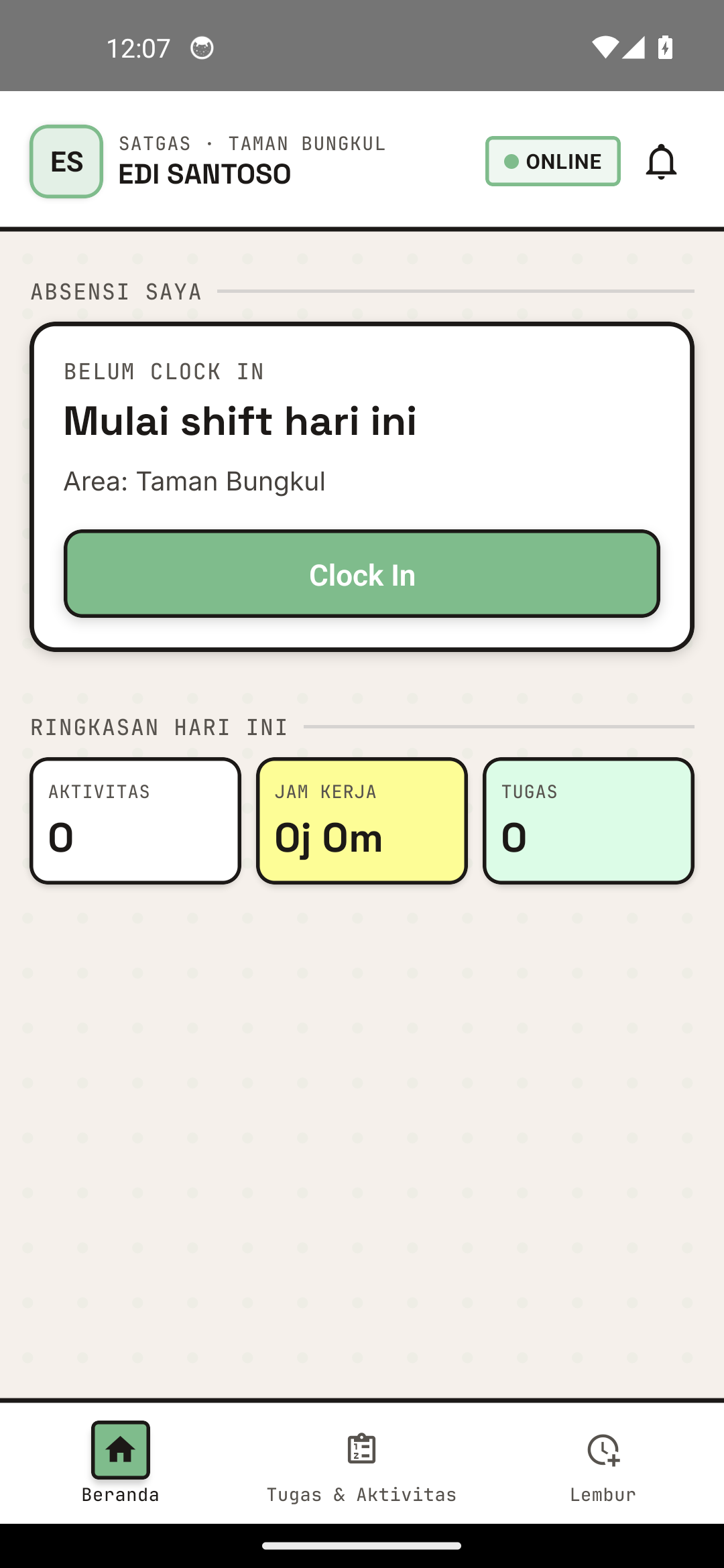
The app home screen after login.
Enabling GPS
GPS is Critical for SEKAR
The SEKAR app requires GPS to be active for:
- Location verification during clock-in
- Real-time worker tracking
- Accurate work reports with location
How to Enable GPS
- Open Settings > Location
- Enable "Location" or "Location Services"
- Select mode: "High Accuracy" or "High Accuracy" (GPS + WiFi combination)
- Open SEKAR app again
Want to Save Battery? "Battery Saver" mode uses WiFi and mobile data only (no GPS), but GPS accuracy decreases. Use "High Accuracy" for best results.
Updating the App
How to Update to Latest Version
- Visit: https://sekar.wahyutrip.com/android
- Check your app version in "Profile" > "Diagnostics"
- If a newer version is available on the page, download and install the new APK file
- Installation will automatically replace the old version
The app will remind you if a newer version is available. Always update for latest features and security.
Uninstalling the App
If you want to remove SEKAR:
- Open Settings > Apps
- Find "SEKAR" in the app list
- Tap the app, then click "Uninstall"
- Confirm removal
- App data will be deleted from your device
Important Note: Uninstalling the app will delete all local data. If you have reports or offline data not synchronized, make sure to upload them to the server before uninstalling.
Installation Troubleshooting
"APK File is Corrupted or Invalid"
Solution:
- Delete the downloaded APK file
- Download again from the official page
- Make sure download completes 100% before installing
- Try downloading using WiFi instead of mobile data
"Not Enough Storage Space"
Solution:
- Open Settings > Storage
- Delete unnecessary apps or files
- Clear cache of other apps
- Try installing again
"Permission to Install from Unknown Source is Blocked"
Solution:
- Open Settings > Security
- Enable "Allow Unknown Apps"
- Select the browser app you used to download
- Try installing again
"App Crashes or Won't Open"
Solution:
- Restart your device
- Delete and reinstall SEKAR
- Make sure your Android is up-to-date
- Contact admin if problem continues
Need help? See FAQ & Help or contact your admin.