User and Role Management
Guide for Admin to manage user accounts and roles in SEKAR.
What is User Management?
Admin Data and Admin System have access to:
- Create New Accounts — Register new workers, coordinators, admins
- Edit Profile — Change name, phone number, photo, etc
- Manage Roles — Assign roles (satgas, korlap, kepala_rayon, etc)
- Deactivate Accounts — Disable accounts for resigned/inactive users
- Reset Password — Reset password for users who forgot
Opening User Page
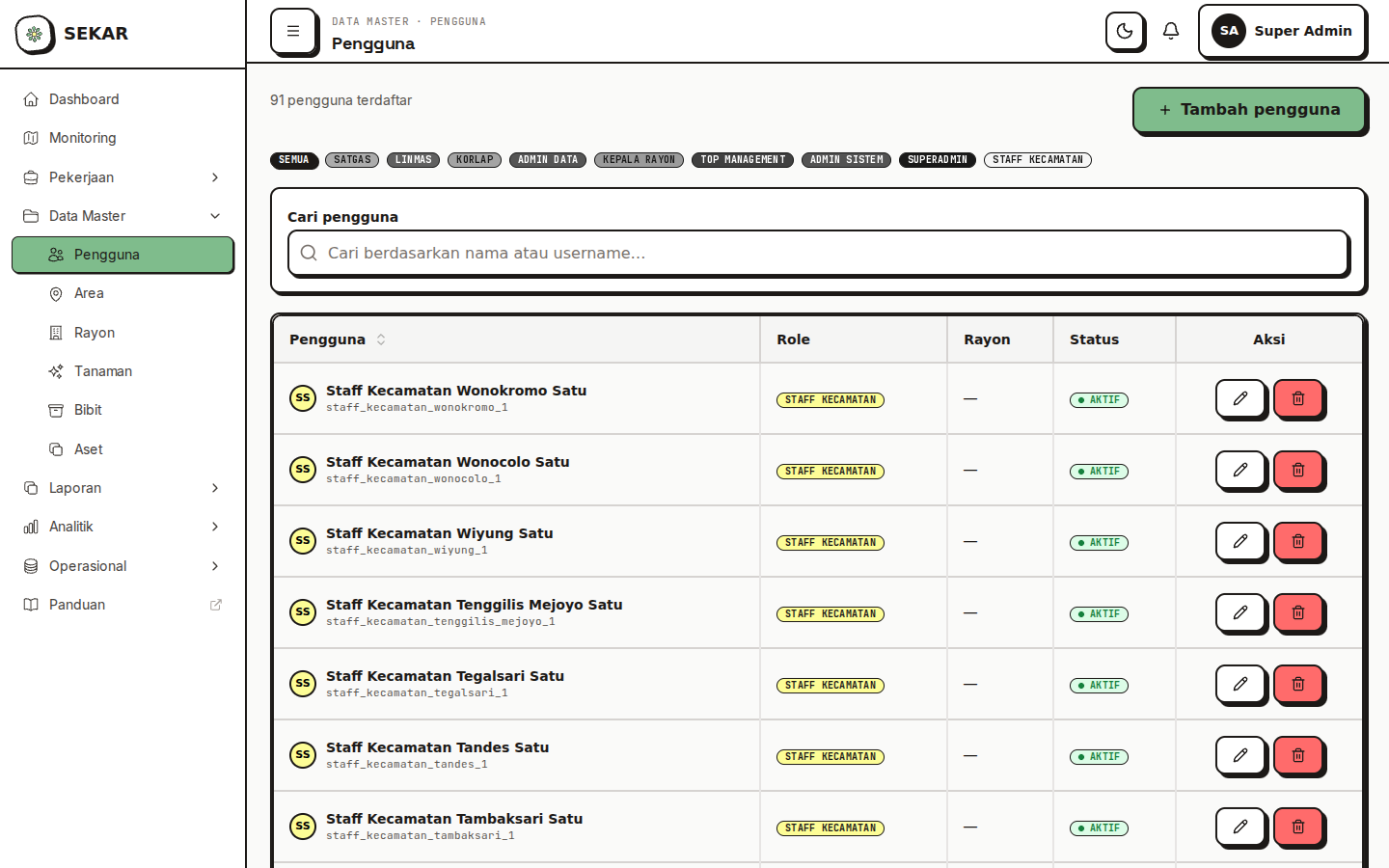
The user management interface showing the user list.
From Web Dashboard
- Log in with Admin account
- In sidebar, tap "Users" or "Users"
- User list will be displayed
User List
User List View
USER LIST (87 total)

[Search User]  [Filter] [+ CREATE USER]

Name           | Phone      | Role          | Status    | Actions
───────────────────────────────────────────────────────────────────
Ahmad Rizki    | 081234567890| Satgas        | ✓ Active  | Edit
Budi Santoso   | 081234567891| Satgas        | ✓ Active  | Edit
Citra Dewi     | 081234567892| Korlap        | ✓ Active  | Edit
Doni Hartono   | 081234567893| Linmas        | ✓ Active  | Edit
Rayon Head     | 081234567894| Kepala Rayon  | ✓ Active  | Edit
Admin Data     | 081234567895| Admin Data    | ✓ Active  | Edit
Superadmin     | 081234567896| Superadmin    | ✓ Active  | Edit
Search & Filter
- Search — Find by name or phone number
- Filter by Role — Show only satgas, korlap, admin, etc
- Filter by Status — Active, Inactive, Pending
- Sort — Name A-Z, Recently created, etc
Creating New User
Step 1: Open Create User Form
- On User page, tap "+ CREATE USER" or "+ Add"
- Form will open
Step 2: Fill in Basic Information
┌──────────────────────────────────┐
│   CREATE NEW USER FORM          │
├──────────────────────────────────┤
│ FULL NAME *                     │
│ [Ahmad Rizki Hamdani        ]    │
│                                 │
│ PHONE NUMBER *                  │
│ [081234567890                ]   │
│                                 │
│ EMAIL (Optional)                │
│ [ahmad@example.com          ]    │
│                                 │
│ PASSWORD *                      │
│ [password123                ]    │
│ [Recommended: password123 ]     │
│                                 │
│ [CONTINUE TO ROLE]              │
└──────────────────────────────────┘
Required Fields:
- Full Name — Name matching ID/official identity
- Phone Number — Format: 081234567890
- Password — Can use password123 temporarily, user can change later
Step 3: Choose Role
CHOOSE USER ROLE *

( ) Satgas - Field worker, does activities
( ) Linmas - Security staff
( ) Korlap - Field coordinator, manages teams
( ) Admin Data - Data management
( ) Kepala Rayon - Rayon head
( ) Top Management - Executive dashboard
( ) Admin System - System administration
( ) Superadmin - Full access
Role Explanation:
| Role | Access | Used For |
|---|---|---|
| Satgas | Clock in, activity reports, overtime | Field workers |
| Linmas | Same as satgas + monitoring | Security staff |
| Korlap | Monitor team, create tasks, validate reports | Field coordinators |
| Admin Data | Manage users, master data | Data admins |
| Kepala Rayon | Rayon dashboard, reports, analytics | Rayon heads |
| Top Management | Executive dashboard, company-wide analytics | Management |
| Admin System | System configuration, technical settings | IT staff |
| Superadmin | Full access to everything | System owner |
Step 4: Assign to Rayon/Area
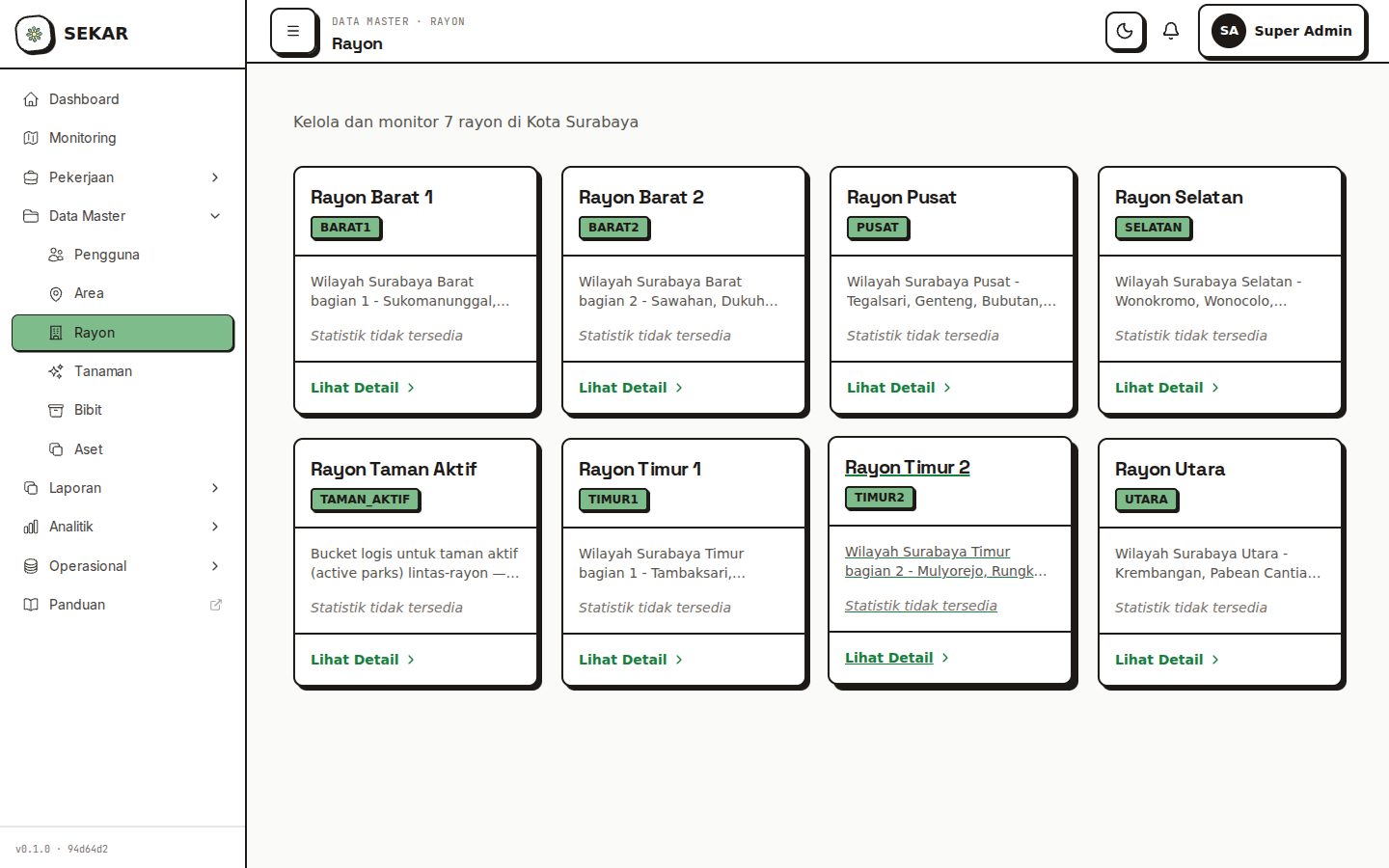
The rayon organization management page.
ASSIGN TO RAYON *

[Select Rayon ▼]
○ Rayon Pusat
○ Rayon Taman Aktif
○ Rayon Bungkul
○ Other
Select rayon where user will work.
Step 5: Create Account
- Verify all information is correct
- Tap "CREATE USER" or "Create User"
- System will create account
- You'll see confirmation:
✓ Account Created Successfully!Name: Ahmad Rizki HamdaniPhone: 081234567890Role: SatgasRayon: Rayon PusatPassword: password123Share credentials with user.
Editing Users
Opening Edit User
- In user list, find user name
- Tap "Edit" button or click user row
- Edit form will open
Edit User Form
You can edit:
- Full Name — Change name
- Phone Number — Change (if changed SIM)
- Email — Add/change email
- Role — Change from satgas to korlap, etc
- Status — Active or inactive
- Rayon — Move to different rayon
- Area Assignment — Areas assigned (for satgas/linmas)
Saving Changes
- Change needed fields
- Tap "SAVE" or "Update"
- Changes will be saved
Reset Password
Changing User Password
If user forgot password:
- Open user profile
- Tap "Reset Password" or "Change Password"
- Enter new password:
New Password: password123Confirm: password123
- Tap "Save"
- Password will be reset
- Tell user their new password
It's recommended to use "password123" temporarily for resets. User can change it again in their profile.
Deactivating Accounts
Deactivating User
If user resigned or is no longer active:
- Open user profile
- Tap "Deactivate" or "Deactivate"
- System will ask for confirmation:
Deactivate this user?[Yes, Deactivate] [Cancel]
- Tap "Yes, Deactivate"
- User status becomes "Inactive"
- User can't login anymore
Reactivating User
If user needs to be active again:
- Filter to show inactive users
- Open user profile
- Tap "Activate" or "Activate"
- Status becomes "Active"
Bulk Management
Import Users from Excel
If adding many new users:
- Look for "Import" or "Upload CSV" button on user page
- Prepare Excel file with columns:
Full Name | Phone Number | Password | Role | RayonAhmad Rizki | 081234567890 | pwd123 | Satgas | PusatBudi Santoso | 081234567891 | pwd123 | Satgas | PusatCitra Dewi | 081234567892 | pwd123 | Korlap | Pusat
- Upload file
- System will validate and import
- Report will show (success, errors, etc)
Bulk Edit Role
If changing role for many people:
- In user list, select multiple users (checkbox)
- Tap "Bulk Edit" or "Change Role"
- Choose new role
- Tap "Apply"
- All selected users will change role
Audit & Activity Log
Viewing User Activity Log
For security & compliance:
- Open user profile
- Look for "Activity Log" or "Audit Trail" tab
- View history:
24 June 2026, 07:15 - Ahmad Rizki logged in from IP 192.168.1.10024 June 2026, 07:20 - Ahmad Rizki submitted activity report24 June 2026, 14:30 - Ahmad Rizki logged out
Troubleshooting User Management
"Can't Create New User"
Causes:
- Phone number already registered
- Some required field not filled
Solutions:
- Check if phone number already in system
- Make sure all required fields are filled
- Contact admin if still fails
"User Can't Login"
Causes:
- Password incorrect
- Account inactive
- Phone number not registered
Solutions:
- Check account status (active/inactive)
- Reset user password
- Verify phone number is correct
"Can't Import Users"
Causes:
- File format wrong
- Duplicate phone numbers in file
- Column doesn't match
Solutions:
- Make sure file format correct (CSV or XLSX)
- Check no duplicate phone numbers
- Make sure columns match (Name, Phone, Role, etc)
Tips for User Management
1. Standard Passwords
- For batch create, use standard password (password123)
- Users can change in their profile
- Don't share password plaintext via chat
2. Unique Phone Numbers
- Make sure each user has unique phone number
- Phone is important identifier in system
- Don't create 2 accounts with same number
3. Correct Roles
- Assign role matching job description
- Don't assign superadmin to everyone
- Review roles regularly (especially at promotion/resignation)
4. Rayon Assignment
- Make sure each user assigned to correct rayon
- Satgas can only see their own rayon
- Admin can see all rayons (depends on role)
5. Deactivation
- Don't delete account, use deactivate
- For audit trail & compliance
- Can re-activate if needed to restore
Need user management help? See FAQ & Help or contact your system admin.