View Your Shift Schedule
Guide to viewing your work schedule (shifts) in the SEKAR app.
What is a Shift Schedule?
Shift Schedule is your work plan that includes:
- Work Hours — What time to what time you work
- Work Area — Where you are assigned
- Work Days — Which days you work
- Shift Type — Shift 1 (morning), Shift 2 (afternoon), Shift 3 (night), etc
This schedule is created by admin/rayon head and you cannot change it yourself.
View Your Schedule
The weekly schedule display.
Method 1: From Menu
- Tap Menu tab (☰)
- Tap "Schedule"
- Your schedule will display
Method 2: From Home
- Tap Home tab
- Scroll down to "Shift Schedule" section
- You'll see this week's schedule
Schedule Format
Schedule View
Schedule displays in weekly calendar format:
┌──────────────────────────────────────┐
│      THIS WEEK'S SHIFT SCHEDULE      │
├──────────────────────────────────────┤
│                                      │
│ MON  TUE  WED  THU  FRI  SAT  SUN   │
│
│ SHIFT 1          SHIFT 1
│ 06:00 - 14:00    06:00 - 14:00
│ Taman Bungkul    Taman Bungkul
│
│ SHIFT 2          SHIFT 2         OFF
│ 14:00 - 22:00    14:00 - 22:00
│ Taman Bungkul    Taman Bungkul
│
│ SHIFT 3          SHIFT 1         SHIFT 3
│ 22:00 - 06:00    06:00 - 14:00   22:00 - 06:00
│ Parking Area     Taman Bungkul   Parking Area
│
└──────────────────────────────────────┘
Information Per Shift
Each shift box shows:
- Shift Name — Shift 1, Shift 2, Shift 3, etc
- Work Hours — Start time - end time
- Area — Work location
- Status — Off (if no shift)
Shift Details
View Specific Shift Details
- Tap one shift in schedule
- Detail pop-up or page opens
Shift Detail Information
┌──────────────────────────────────────┐
│ SHIFT 1 DETAILS - MONDAY             │
├──────────────────────────────────────┤
│                                      │
│ SHIFT NAME: Shift 1 (Morning)        │
│ WORK HOURS: 06:00 - 14:00            │
│ DURATION: 8 hours                    │
│ AREA: Taman Bungkul                  │
│                                      │
│ AREA COORDINATES                     │
│ Latitude: -7.295479                  │
│ Longitude: 112.762227                │
│ GPS Radius: ±100m                    │
│                                      │
│ BREAK TIME                           │
│ Break Time: 12:00 - 13:00            │
│                                      │
│ NOTES: Area needs cleaning           │
│ before 10:00 for visitors             │
│                                      │
│ [CLOSE]                              │
└──────────────────────────────────────┘
Information Shown:
- Shift name and type
- Work hours (start - end)
- Total work duration
- Assigned area
- Area GPS coordinates
- GPS tolerance radius (usually ±100m)
- Break time (if any)
- Special notes from supervisor
Types of Shifts
SEKAR Standard Shifts
SEKAR usually uses 3 shifts:
| Shift | Name | Hours | Description |
|---|---|---|---|
| Shift 1 | Morning | 06:00 - 14:00 | Morning - afternoon |
| Shift 2 | Afternoon/Evening | 14:00 - 22:00 | Afternoon - night |
| Shift 3 | Night | 22:00 - 06:00 | Night - morning |
Shift hours may differ by rayon policy. Check your schedule for accurate times.
Days Off & Holidays
If no shift on a day, it shows "OFF":
OFF
(No shift today)
Days off usually:
- Sundays
- Public holidays
- Scheduled off-days
View Long-Term Schedule
Weekly vs Monthly Schedule
Default: Weekly Schedule
- See 7 days (Monday - Sunday)
- Navigation buttons for previous/next week
How to See Other Weeks:
- On Schedule page, find "< Previous Week" and "Next Week >" buttons
- Tap button to navigate
- Schedule changes to selected week
Check Schedule Weeks Ahead
- Open Menu → Schedule
- Navigate to week you want
- Or find "View Monthly Schedule" for full month overview
Prepare Before Shift
Pre-Shift Checklist
Based on your schedule, prepare:
-
Night Before
- ✓ Check tomorrow's shift schedule
- ✓ Make sure device fully charged
- ✓ Prepare work equipment (tools, uniform, etc)
-
Shift Morning
- ✓ Wake up on time (15-30 min before shift)
- ✓ Be at location before shift starts
- ✓ Make sure GPS active
- ✓ Check internet connection
-
When Clocking In
- ✓ Open SEKAR app
- ✓ Tap "CLOCK IN"
- ✓ Take selfie photo
- ✓ Confirm
Arrive Early! Come 5-10 minutes before shift to avoid being late and ensure GPS ready.
Upcoming Shifts
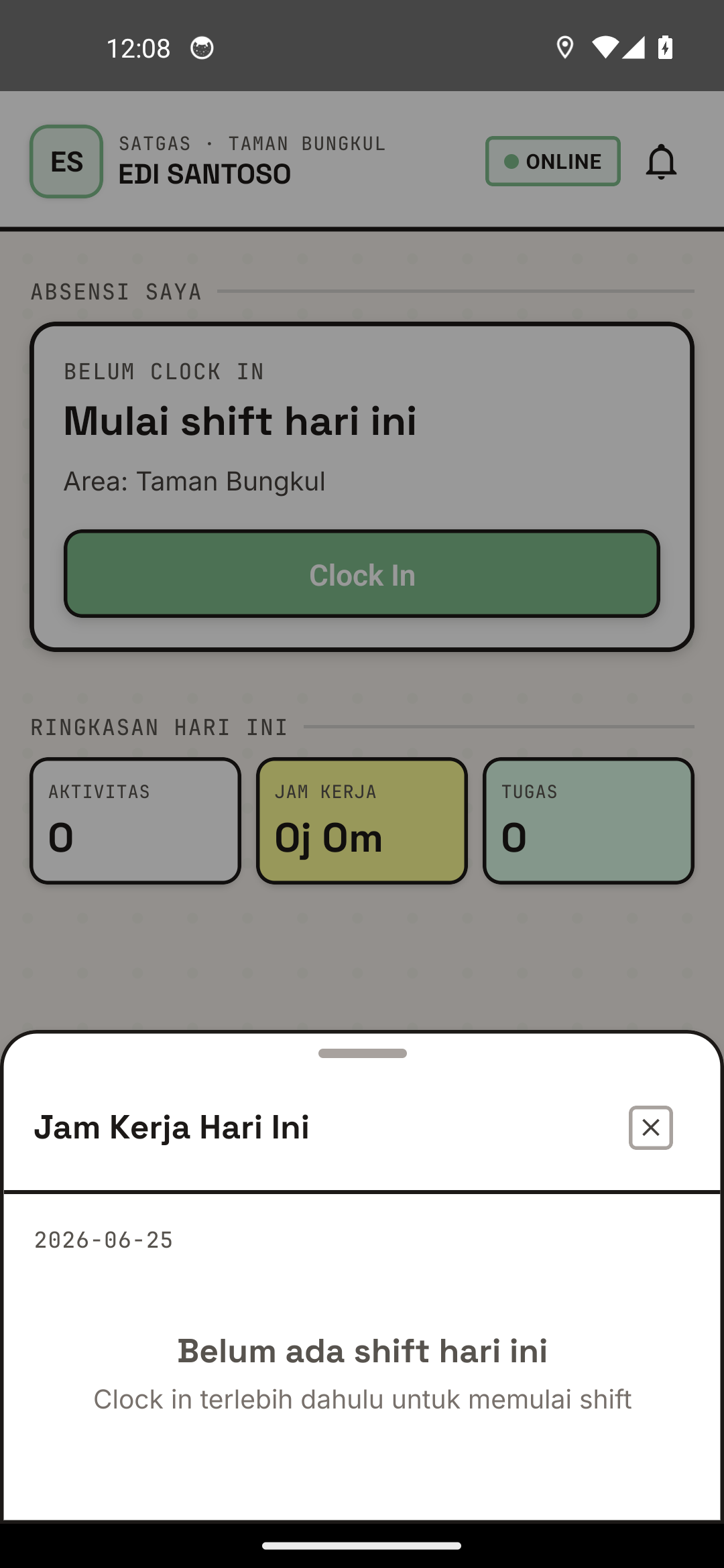
The attendance and history view.
Next Shift Information on Home
On Home page, you can see:
TODAY'S SHIFT
Shift 1 - Taman Bungkul
06:00 - 14:00

TOMORROW'S SHIFT
Shift 2 - Taman Bungkul
14:00 - 22:00
This helps you prepare for next shift.
Schedule Changes
If Schedule Changes
If admin/rayon head changes your schedule:
- Notification — You'll get push notification
- Update App — Open Schedule tab to see latest
- Refresh — If not showing, pull-to-refresh or restart app
Communicate Schedule Changes
If there's sudden schedule change:
- Contact Supervisor — Reach out to Korlap/Rayon Head
- Confirm — Make sure you understand new schedule
- Prepare — Adjust preparation for new schedule
Don't skip shift because you didn't see schedule update! Always check SEKAR before shift starts.
Schedule Management Tips
1. Set Alarm
- Set alarm 30 minutes before shift
- Don't rely only on app notifications
2. Write Down Schedule
- Screenshot or write schedule in personal calendar
- If possible, write on home calendar
3. Prepare Night Before
- Prepare equipment at night
- Don't prepare in morning (might be late)
4. Communicate with Team
- Know who shifts with you
- Coordinate if changing areas
5. Get Enough Rest
- For Shift 3 (night), rest during day
- Don't work overtime multiple days without rest
Schedule Troubleshooting
"Schedule Not Showing in App"
Causes:
- Schedule not entered by admin yet
- Data loading error
- Internet cut while loading
Solution:
- Refresh page (pull-to-refresh)
- Restart app
- Make sure internet active
- Contact admin if still not showing
"App Schedule Different from What Supervisor Told Me"
Solution:
- Contact supervisor to clarify
- Usually app has most updated data
- If mismatch, supervisor can update
"Don't Know My Schedule"
Solution:
- Open app → Schedule tab
- See current week
- Still confused? Contact supervisor
- Can also ask teammate
Need schedule help? See FAQ & Help or contact your supervisor.