How to Create Work Reports & Activities
Complete guide to creating and submitting work reports with photos and videos.
What is a Work Report?
Work Report (Activity) is documentation of your work containing:
- Activity Description — What you did
- Activity Type — Category of work (cleaning, maintenance, etc)
- Photo/Video — Visual proof of work
- Work Location — Area where work was done
- Time — When work was done
This report will be viewed and validated by supervisor/korlap for performance evaluation.
Steps to Create Report
1. Open Activities Page
Method 1 - From Menu:
- Tap Menu tab (☰)
- Tap "Activities"
Method 2 - From Home:
- Tap Home tab
- Scroll down
- Tap "+ Report Activity" or "Create Report"
2. Activity Report Form
You will see a form with several fields:
┌──────────────────────────────────┐
│   ACTIVITY REPORT FORM          │
├──────────────────────────────────┤
│ Activity Type *                 │
│ [Select: Cleaning ▼]            │
│                                 │
│ Description *                  │
│ [Describe the work done...]     │
│                                 │
│ Location *                      │
│ [Location: Taman Bungkul ✓]     │
│                                 │
│ Activity Photo *                │
│ [+ TAKE PHOTO]                  │
│ [+ TAKE VIDEO]                  │
│                                 │
│ [SAVE DRAFT]  [SUBMIT]          │
└──────────────────────────────────┘
3. Select Activity Type
-
Tap the "Activity Type" dropdown
-
Select a category:
- Cleaning
- Maintenance
- Repair
- Planting
- Other
-
Activity type will appear in field
Activity type must be selected to categorize your report.
4. Fill in Work Description
- Tap the "Description" field
- Type a description of work you did:
Example of Good Description:
- "Cleaned Taman Bungkul area from plastic trash and dry leaves. Swept around playground and recreation area."
- "Trimmed tree branches sweeping over sidewalk in front of Taman Bungkul fence. Collected trimmings and took to waste collection point."
Don't:
- Too short ("Just worked")
- Too generic ("Did the task")
- No detail ("Whatever")
- Minimum 20 characters for description
5. Check Location
Location will auto-fill from your assigned work area:
- Area: Taman Bungkul
- Coordinates: -7.295479, 112.762227
Location is fixed, cannot be changed — matches your assigned area when you clocked in. If working in different area, contact supervisor.
6. Take Photo Evidence
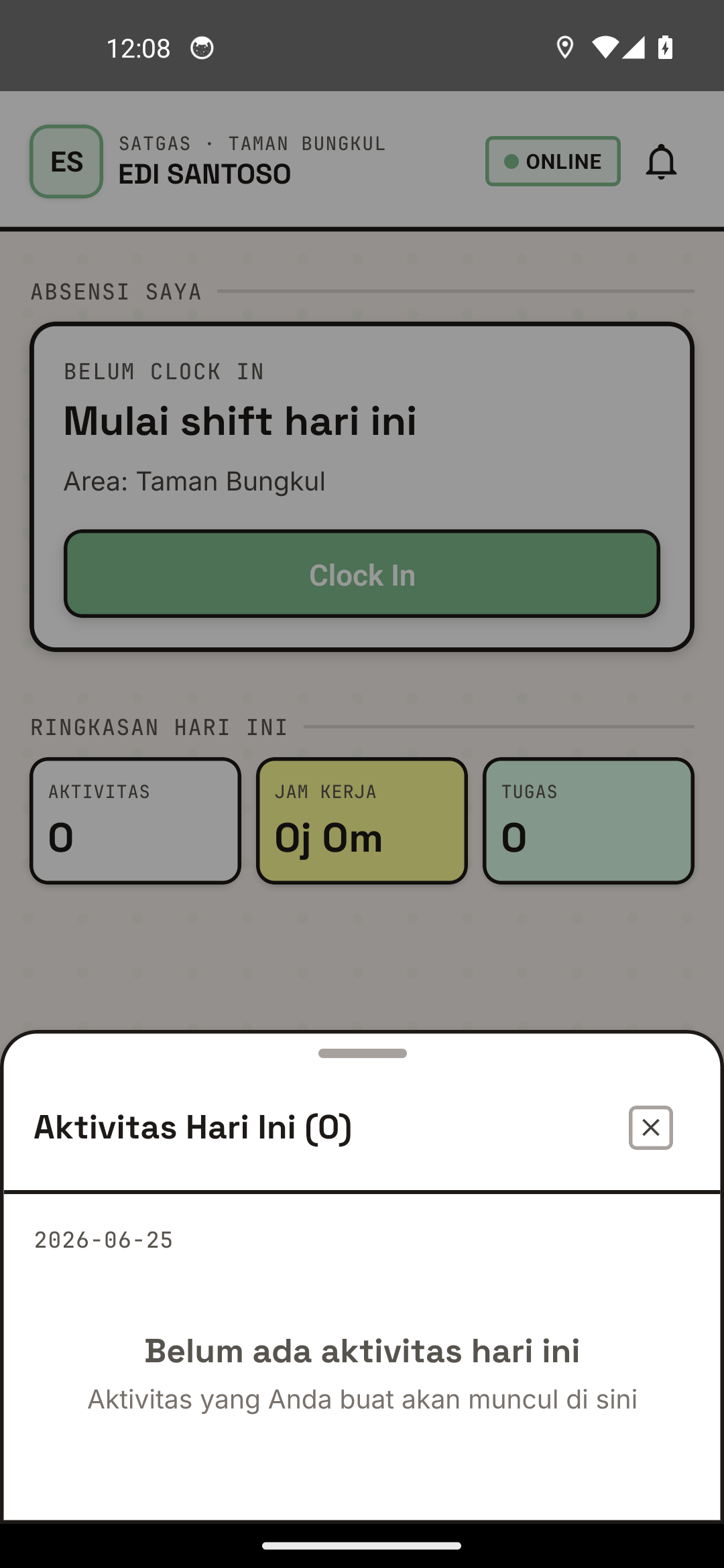
The activity report creation screen.
System requires minimum 1 photo or video for work proof:
How to Take Photo:
-
Tap "+ TAKE PHOTO"
-
Allow camera access
-
Take photo of your work:
- Photo of area before work
- Photo of area after work
- Photo of work results clearly
-
After photo, you can:
- ✓ Use — Save this photo
- ✗ Retry — Take another photo
- 🔄 Edit — Crop or resize
-
Photo appears in preview
How to Take Video:
- Tap "+ TAKE VIDEO" (if available)
- Allow camera access
- Record video of work (max 2-3 minutes)
- After done, tap stop
- Preview video and tap ✓ to save
Best Photo & Video Tips:
- Before & After: Take photos of area before and after work
- Good Lighting: Daytime better than night
- Clear & Bright: Avoid blur or darkness
- Show Context: Display work area and results
- Video: Make short video (1-2 min) showing activity
7. Add More Photos/Videos (Optional)
You can add up to 5-10 photos/videos:
- After first photo is saved, tap "+ TAKE PHOTO AGAIN"
- Repeat for next photo
- Photos display as gallery
Save & Submit Report
Option 1: Save as Draft
- Fill all required fields
- Tap "SAVE DRAFT"
- Report will save on your device
- You can edit and submit later
When to Use Draft?
- Work not finished yet
- Want to add photos/videos later
- Not sure about report now
Option 2: Submit Report
-
Make sure all fields filled:
- ✓ Activity Type
- ✓ Description
- ✓ Minimum 1 Photo/Video
-
Tap "SUBMIT" or "SUBMIT"
-
System will:
- Upload photos/videos to server
- Record time and location
- Send notification to supervisor
-
You'll see message:
✓ Report SubmittedID: LAP-20260624-001Status: Awaiting Validation -
Report sent to supervisor for validation
After Submitting, report cannot be edited. Make sure everything correct before submit.
Report Status
After submitting, status changes based on validation process:
| Status | Meaning | Action |
|---|---|---|
| 📝 Draft | Not submitted, can still edit | Edit or Submit |
| ⏳ Awaiting Validation | Submitted, supervisor reviewing | Wait for supervisor check |
| ✅ Approved | Supervisor approved report | Done |
| ❌ Rejected | Supervisor rejected with reason | Make new report |
| 📝 Revision | Needs correction per notes | Edit per feedback |
View Report Status
- Open Menu → Activities
- See list of your reports
- Status shown for each item
Editing Draft Report
How to Edit Draft
If report still in Draft status:
- Open Menu → Activities
- Find report with "Draft" status
- Tap report to open
- Tap "Edit" or edit icon
- Change fields you want
- Tap "Save" or "Submit"
Already Submitted Reports
If report already submitted (cannot edit directly):
- Wait for feedback from supervisor
- If rejected, you can make new report
- If revision needed, check supervisor notes and make new report with improvements
Offline Mode
Creating Report While Offline
You can still make reports while offline:
- Take photo (saves locally)
- Fill description
- Tap "SAVE DRAFT"
- Report saves on device
Submitting Report While Offline
Reports cannot submit directly while offline. After connection returns:
- Open draft report
- Tap "SUBMIT"
- System tries to upload
- Status changes to "Awaiting Validation"
Make sure connection stable when submitting report so photos upload properly.
Report Troubleshooting
"Photo Too Large / Cannot Upload"
Solution:
- App auto-compresses photos
- If still fails, try taking again with lower resolution
- Reduce number of photos (make 2 reports if needed)
"Report Rejected by Supervisor"
What to Do:
- Check rejection reason in supervisor notes
- Make new report with improvements:
- More detailed description
- Clearer photos
- Follow supervisor feedback
- Submit new report
"Status Still 'Awaiting Validation' After 1 Day"
Possible:
- Supervisor hasn't checked report yet
- Technical issue
Solution:
- Contact supervisor to check status
- If needed, make additional report for today
"Cannot Add Photo (Button Disabled)"
Causes:
- Reached maximum photo limit (usually 10)
- Report already submitted (cannot edit)
Solution:
- If photo limit, make new report for additional photos
- If submitted, wait for supervisor feedback
Tips for Good Reports
1. Detailed Description
- Say what you did, how, and results
- Example: "Cleaned recreation area from trash and dry leaves. Swept all areas, washed playground equipment with clean water."
2. Quality Photos
- Take minimum 2 photos: before and after
- Good light, clear object, not blurry
- Include surrounding area so supervisor knows location
3. Match Activity Type
- Pick type matching your work
- Don't be careless
4. Timely
- Make report same day work was done
- Don't pile up reports multiple times
5. Honest & Accurate
- Report what you actually did
- Don't fake photos or description
Need help? See FAQ & Help or contact your supervisor.