Request and Report Overtime (Overtime)
Complete guide to requesting overtime and reporting your overtime work.
What is Overtime?
Overtime is extra work outside normal hours. Every overtime must:
- Be approved first by supervisor/Korlap
- Be documented with work report
- Be paid/compensated per policy
Request Overtime
When Can You Request Overtime?
You can request overtime if:
- ✓ Urgent work not finished during normal shift
- ✓ Special project needed outside hours
- ✓ Special event or activity at work area
Cannot just overtime anytime! Overtime must have clear reason and supervisor approval.
Steps to Request Overtime
1. Open Overtime Page
Method 1 - From Menu:
- Tap Menu tab (☰)
- Tap "Overtime"
Method 2 - From Home:
- Tap Home tab
- Tap "REQUEST OVERTIME" button (if available)
2. Overtime Request Form
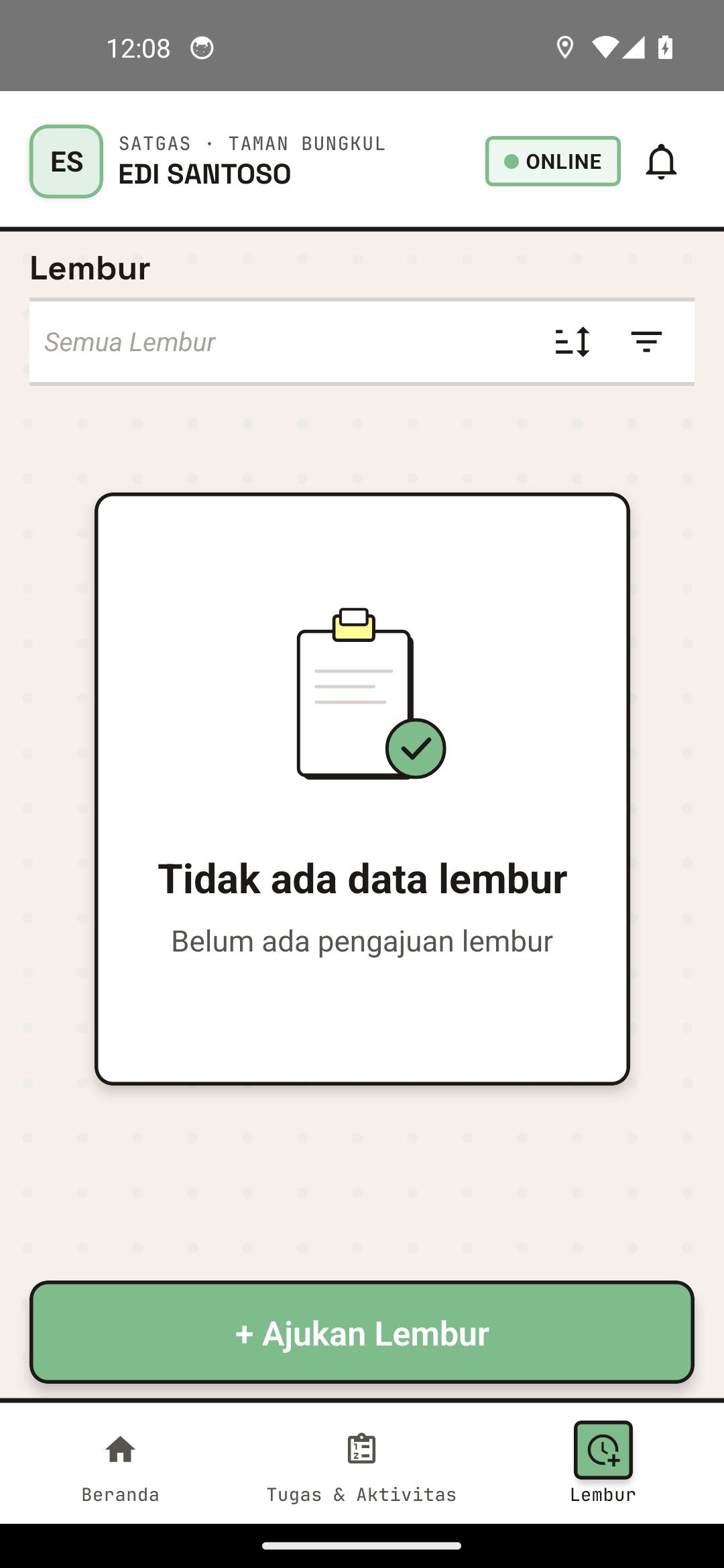
The overtime request submission screen.
You'll see a form:
┌──────────────────────────────────┐
│   REQUEST OVERTIME FORM         │
├──────────────────────────────────┤
│ Date *                          │
│ [Select Date: June 24, 2026 ▼]  │
│                                 │
│ Overtime Start Time *           │
│ [17:00 ▼] (After normal shift)  │
│                                 │
│ Overtime End Time *             │
│ [20:00 ▼]                       │
│                                 │
│ Duration: 3 hours               │
│                                 │
│ Reason for Overtime *           │
│ [Describe reason for overtime...]│
│                                 │
│ [REQUEST]  [CANCEL]            │
└──────────────────────────────────┘
3. Fill Date & Overtime Time
Select Date:
- Tap "Date" field
- Pick overtime date (which day)
Fill Start & End Times:
- Start Time — When overtime starts (ex: 17:00)
- End Time — When overtime ends (ex: 20:00)
- System auto-calculates duration (3 hours in example)
Start time usually after normal shift ends (ex: 14:00 or 17:00 depending on shift).
4. Fill Overtime Reason
Type your reason clearly:
Example Good Reasons:
- "Complete playground area cleaning not finished afternoon shift. Area needs cleaning before weekend for visitor safety."
- "Help fix broken light in park area to maintain evening visitor comfort."
- "Special event setup for community activity tomorrow morning. Need preparation tonight."
5. Send Overtime Request
- Check all fields filled
- Tap "REQUEST" button
- System sends to supervisor
- You'll see message:
✓ Overtime Request SentWaiting for supervisor approval
Overtime Request Status
After requesting:
| Status | Meaning | Action |
|---|---|---|
| ⏳ Pending | Waiting for supervisor approval | Wait for answer |
| ✅ Approved | Supervisor approved overtime | Do overtime as planned |
| ❌ Rejected | Supervisor not approved | Contact supervisor for reason |
Do Overtime
Before Starting Overtime
- Make Sure Approved — Check status is "Approved"
- Prepare — Get needed equipment/tools
- Communicate — Know which supervisor on-duty
During Overtime
Overtime done outside normal shift hours, but:
- ✓ Must keep GPS recording (location tracking active)
- ✓ Must make work report for documentation
- ✓ Don't need clock in/out (not in normal shift hours)
Report Overtime
Create Overtime Report
After overtime finished, make work report:
1. Open Activity Report
- Tap Menu → Activities
- Tap "+ REPORT ACTIVITY" or "Create New Report"
2. Fill Report Form
Activity Type: [Select appropriate]
Description: "Overtime - [Describe overtime work]"
Location: [Area where overtime was done]
Time: [Overtime time (ex: 17:00 - 20:00)]
Photo: [Take photo of overtime work results]
3. Link to Overtime
In report form, there's "Related Overtime" field:
- Tap "Related Overtime" field
- Select overtime matching this report
- Overtime links to report
4. Take Photo & Submit
- Take photo of overtime work results
- Tap "SUBMIT"
- Report sent to supervisor
Example Overtime Report
Activity Type: Repair
Description: Overtime - Completed fixing light
in playground area. Cleaned up work area and
made sure area safe for visitors.
Location: Taman Bungkul
Time: 17:00 - 20:00
Photo: [Photo of area before & after repair]
Related Overtime: June 24, 2026 Overtime (17:00-20:00)
Your Overtime List
View Overtime History
- Tap Menu → Overtime
- You'll see your overtime list
Information in Overtime List
Each overtime shows:
┌──────────────────────────────────┐
│ APPROVED OVERTIME               │
│ Date: June 24, 2026             │
│ Time: 17:00 - 20:00 (3 hours)   │
│ Status: ✅ Approved              │
│ Report: ✓ Already reported      │
│                                 │
│ PENDING OVERTIME                │
│ Date: June 25, 2026             │
│ Time: 17:00 - 19:00 (2 hours)   │
│ Status: ⏳ Waiting for Approval  │
│ Report: — Not reported yet      │
└──────────────────────────────────┘
Filter Overtime
You can filter by:
- Status — Pending, Approved, Rejected
- Date — This week, This month, All
Offline Mode Overtime
Request Overtime While Offline
If offline when requesting:
- Fill overtime form normally
- Tap "REQUEST"
- Form saves as draft locally
- When connected, system auto-submits
Report Overtime While Offline
You can make overtime report offline too:
- Take photo (saves locally)
- Fill activity report
- Link to overtime
- Tap "SUBMIT" when online
Make sure overtime data syncs before overtime ends, so supervisor can validate on time.
Overtime Troubleshooting
"Overtime Request Rejected, Why?"
Possible Reasons:
- Supervisor schedule doesn't allow approval
- Different overtime policy that day
- Supervisor not available then
Solution:
- Check feedback/reason from supervisor in app
- Contact supervisor directly to discuss
- Request overtime at different time
"Overtime Status Still 'Pending' After Long Time"
Possible:
- Supervisor hasn't checked request
- Technical issue
Solution:
- Chat/contact supervisor to check
- If urgent, communicate directly
"Already Did Overtime But Forgot to Report"
Must Report Soon:
- Make activity report (even if not 24 hours yet)
- Describe overtime work done
- Link to matching overtime
- Take photo if possible (or report area condition)
"Overtime Report Rejected"
What to Do:
- Check supervisor feedback about rejection reason
- Make new report with improvements (better photos, clearer description)
- Link to same overtime
- Resubmit
Overtime Tips
1. Request Before Overtime
- Don't overtime first then request
- Request first to get approval
2. Clear Reason
- Explain overtime reason with detail
- Supervisor needs to know why
3. Good Documentation
- Make detailed report
- Take photos showing overtime work
4. Don't Overdo
- Overtime shouldn't hurt your health
- Rest enough for next shift
5. Communicate
- Tell supervisor if overtime can't finish as planned
- Document what you already did
Need overtime help? See FAQ & Help or contact your supervisor.